
Notion for Design Agencies: A Complete Setup Guide
Search articles...
Notion Systems
Design agency Notion workspace
How to use Notion for a design agency
Design agencies juggle multiple projects, diverse clients, creative assets, team schedules, budgets, and deadlines. Traditional project management tools force creative teams into rigid structures. Spreadsheets scatter information. File storage disconnects from projects. Communication platforms exist separately from the work context. The result: fragmented operations, lost information, and wasted time searching for what should be instantly accessible.
Notion offers a different approach for design agencies. This flexible, visual, all-in-one workspace consolidates project management, client relationships, asset libraries, team collaboration, and financial tracking into a single connected system. Instead of forcing your agency into someone else's workflow, Notion adapts to how creative teams actually work.
This complete setup guide walks you through building a professional Notion workspace for your design agency from scratch. You'll learn exactly how to structure databases, create views, connect information, and build systems that scale with your agency.
Why Notion Is Perfect for Design Agencies
The All-in-One Workspace Advantage
Design agencies traditionally cobble together five to ten separate tools: project management software for tasks, CRM for clients, cloud storage for files, time tracking apps for billing, spreadsheets for budgets, knowledge bases for documentation, and communication platforms for coordination. Each tool requires separate logins, has different interfaces, stores isolated data, and charges monthly fees.
Notion replaces this fragmented toolkit with a unified workspace. Projects connect to clients. Assets link to projects. Time entries are associated with tasks. Budgets are calculated from time logs. Client portals pull from project status. Everything relates to everything else because it all lives in one interconnected system. Context never disappears. Information flows automatically. Teams work faster because they're not constantly switching tools or searching across platforms.
Notion provides building blocks rather than predetermined structures. You construct exactly what your agency needs, nothing more, nothing less. A branding agency builds different systems than a web design studio. A five-person team needs simpler structures than a twenty-five-person agency. Notion accommodates these differences through customizable databases, views, and properties.
As your agency grows, Notion grows with you. Start with basic project tracking. Add client management when needed. Build asset libraries as collections expand. Implement time tracking when billing complexity increases. Layer on team management when coordination becomes challenging. The workspace evolves gradually rather than requiring complete replacement when you outgrow initial tools.
Visual and Collaborative by Design
Design agencies think visually. Notion's visual interface: gallery views for browsing assets, board views for project pipelines, embedded design files, cover images on database entries, matches how creative teams naturally work. Drag and drop content. Organize visually. Browse graphically rather than scanning text lists.
Real-time collaboration enables teams to work together seamlessly. Multiple people edit simultaneously. Comments attach to specific content. @mentions notify teammates. Changes appear instantly. Everyone sees current information without version control confusion or "which document is the latest?" questions.
Information currency matters for agencies. When project status changes, everyone needs to know immediately. When clients provide feedback, the entire team must see updates. When deadlines shift, all related tasks adjust automatically. Notion's real-time synchronization ensures teams always work with current information.
Collaborative editing means multiple designers simultaneously update the same project page. Project managers add tasks while designers log time, while account managers update client notes, all in the same database without conflicts or overwrites. Changes appear instantly across all devices. Desktop edits immediately reflect on mobile. Browser updates sync to apps. Your entire team stays synchronized without manual updates or status meetings just to share information.
Cost-Effective Compared to Multiple Tools
Design agencies paying for Asana ($10-24/user/month), Monday ($8-16/user/month), Harvest ($10-12/user/month), and various other tools easily spend $50-100 per person monthly on software, $500-1000 monthly for a ten-person team. Notion costs $10 per user monthly for the Plus plan or $15 for Business, immediately cutting software expenses by 70-85%.
Beyond direct cost savings, consolidation reduces training time, eliminates integration maintenance, prevents data synchronization issues, and simplifies IT administration. Hidden costs of tool sprawl, like troubleshooting connection failures, reconciling data conflicts, and training on multiple interfaces, disappear when everything lives in one system.
Planning Your Notion Workspace Structure
Understanding Notion's Building Blocks
Before building your agency workspace, understand Notion's fundamental components.
Pages are the basic unit of organization. Every piece of content lives on a page. Pages can contain text, images, files, embedded content, and databases. Pages nest inside other pages, creating hierarchies. Your workspace might have a top-level "Projects" page containing individual project pages, each holding deliverables, notes, and assets.
Databases are structured collections of pages where each entry is a page with properties. A Projects database contains multiple project pages. Each project page has properties like Status, Client, Budget, and Deadline. Properties create consistency (every project tracks the same information) while individual project pages remain flexible for unique content.
Views display database information in different formats. The same Projects database shows as a kanban board (cards grouped by status), calendar (projects by deadline), table (spreadsheet-like rows and columns), timeline (Gantt chart), or gallery (visual cards). Views are windows into data, not separate copies. Update information in any view, and all views reflect changes.
Relations and rollups connect databases and aggregate information across connections. Projects relate to Clients. Time Entries relate to Projects. Through these connections, a Client automatically displays all related projects. A Project automatically sums all related time entries. Rollups calculate aggregated values: total hours logged, total revenue,and average project value. Connected data creates powerful insights impossible with isolated information.
Core Systems Every Design Agency Needs
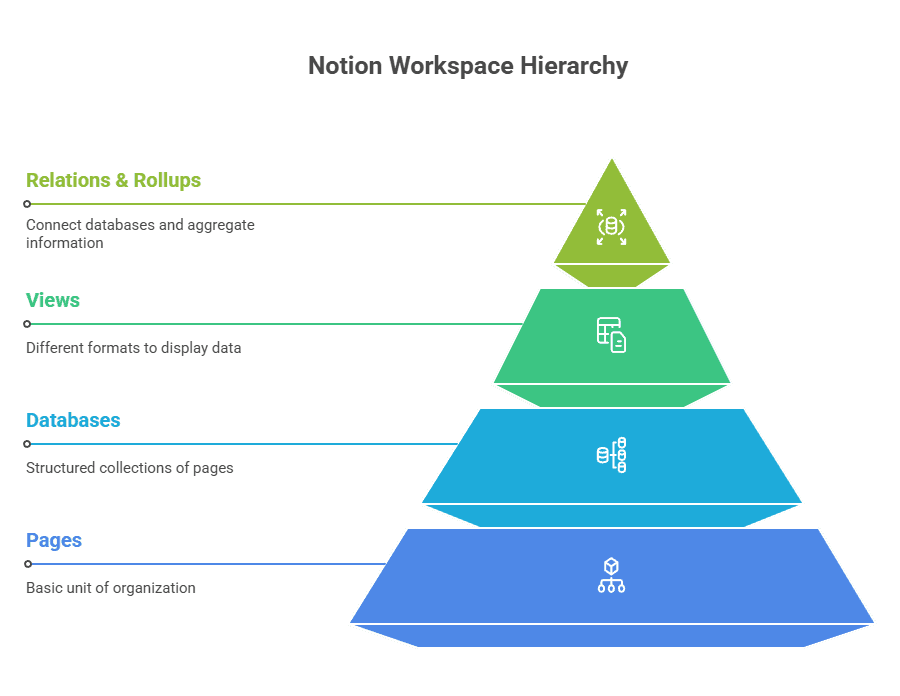
Design agencies require six core systems regardless of size or specialization.
Project management tracks creative work from initial inquiry through final delivery. Each project needs status tracking, phase management, deadline monitoring, task assignment, deliverable checklists, and milestone completion. Projects connect to clients, tasks, assets, time entries, and team members.
Client relationship management maintains client information, contact details, project history, communication logs, contract status, billing information, and relationship health. Sophisticated CRM systems calculate lifetime value, track touchpoint frequency, flag at-risk relationships, and forecast renewals.
Asset library organizes creative files, brand guidelines, stock resources, font collections, color palettes, and deliverables. Visual organization through galleries and tags makes assets discoverable. Version control tracks iterations. Usage rights prevent legal issues. Organizing by project and client provides context.
Time tracking and budgets capture billable hours, calculate project costs, monitor budget consumption, identify profitability, and inform invoicing. Real-time budget tracking prevents overruns. Historical time data improves future estimates. Utilization metrics reveal team capacity.
Team management handles people operations: profiles and skills, availability and capacity, workload distribution, meeting notes, decisions, and performance tracking. Capacity planning prevents overload. Skills matrices match people to projects. Communication hubs centralize coordination.
Knowledge base preserves institutional wisdom: company information, brand guidelines, standard processes, design methodologies, tool documentation, training materials, and best practices. Documented processes enable scaling. Searchable knowledge reduces repeated questions. Templates standardize quality.
Workspace Architecture Best Practices
Top-level structure determines workspace navigability. Organize main sections by function: Projects, Clients, Assets, Team, Financials, Knowledge Base, Dashboards. Each becomes a top-level page in your sidebar. Avoid nesting too deeply; information hidden five levels down becomes effectively invisible.
The navigation strategy ensures team members quickly find what they need. Pin frequently-accessed pages in sidebar favorites. Create a home dashboard linking to all major sections. Build personal dashboards for individual team members. Use consistent naming and iconography for recognizability.
Access permissions control information visibility. Some team members need full access to everything. Others should see only their projects. Clients require limited access to specific project portals. Establish permission levels thoughtfully: workspace owners for admins, full members for team, guests for contractors and clients.
Naming conventions maintain clarity as workspaces grow. Prefix database names with purpose (DB: Projects, DB: Clients). Use consistent date formats for sorting. Standardize status terminology across all databases. Document naming rules so everyone follows conventions.
Skip the Setup: Get the Free Design Agency Template
Before diving into building your workspace from scratch, you have an option that can save you hours of setup time: a free, ready-to-use Design Agency Project Management template available in the official Notion Marketplace.
Two Paths Forward: Template or Build
You have two options for creating your design agency workspace:
Option 1: Start with the Template (Recommended for quick setup)
Get the free template from Notion Marketplace, duplicate it into your workspace, and customize the structure to match your agency's specific needs. You'll have a functional system in minutes rather than hours, with all the heavy lifting already done.
Option 2: Build from Scratch (Recommended for deep understanding)
Follow the detailed phases below to construct your workspace step by step. This approach takes longer but ensures you understand every component, making future customization and troubleshooting easier.
Best of Both Worlds
Many agencies duplicate the template first to see the finished system in action, then follow this guide to understand how each piece works and customize it thoughtfully. The template provides immediate functionality, while the guide provides mastery.
Now, whether you're starting with the template or building from scratch, let's walk through each phase of the design agency workspace setup.
Phase 1 - Foundation Setup
Creating Your Workspace Structure
Begin by establishing your workspace's skeletal structure, the top-level pages that organize everything else.
Create a Home Dashboard page at your workspace root. This becomes your landing page, providing quick access to all major systems and displaying key information at a glance. The home dashboard should feel like a command center, with everything important visible or linked.
Add these main section pages to your workspace root: Projects, Clients, Assets, Team, Financials, Knowledge Base, and Dashboards. These seven pages organize your agency's operations. Each will eventually contain databases, documentation, and sub-pages.
Building navigation means organizing your sidebar strategically. Drag these seven section pages to the top of your sidebar. Add distinctive emoji icons for visual recognition: 📁 Projects, 👥 Clients, 🎨 Assets, 👤 Team, 💰 Financials, 📚 Knowledge Base, 📊 Dashboards. Consistent iconography makes scanning faster.
Within your home dashboard, create a simple page structure: Welcome section explaining the workspace purpose and navigation, Quick Links grid providing one-click access to each major section, Key Metrics area (initially empty, populated later with database views), and Recent Activity showing latest updates.
Setting Up Team Access and Permissions
Adding team members to your Notion workspace happens through Settings & Members. Click Settings in the sidebar, select Members, then Invite Members. Enter team email addresses. Notion sends invitation emails with workspace access links.
Permission levels in Notion offer granular control. Workspace Owner has full administrative access, changing settings, managing billing, and controlling all permissions. Full Members can create, edit, and delete pages with some restrictions on workspace settings. Guests have limited access only to specific pages explicitly shared. For design agencies: make founders/partners owners, all employees full members, contractors/clients guests.
Guest access for clients enables client portals without exposing internal information. Create dedicated client portal pages. Share these specific pages with client email addresses as guests. Clients see only their portal page, not your entire workspace. Set permissions to "Can comment" or "Can view" rather than "Can edit" unless clients need update capability.
Test permissions thoroughly before inviting clients. Log in with a test guest account. Verify guests can't navigate to internal pages. Ensure they see only intended information. Check mobile experience since clients often access portals from phones.
Installing Essential Integrations
Slack connection keeps your team notified about workspace updates. Install the Notion app in Slack: Go to Slack App Directory, search "Notion," and click Add to Slack. Connect your Notion workspace. Configure notifications: page updates, @mentions, comments, and database changes. Choose which Slack channels receive which notifications. Most agencies send project updates to #projects, client mentions to #clients.
Google Drive sync embeds Drive files directly in Notion pages. While Notion stores files natively, many agencies maintain Drive for client file sharing or large file storage. Embed Drive files: Copy Drive file link, paste into Notion page, select "Embed" when prompted. Files display inline with preview capability. Click through to open in Drive when full editing is needed.
Calendar integration displays schedules within Notion. Embed Google Calendar or Outlook Calendar: Copy calendar's public URL or embed code, paste into Notion page, select "Embed." Calendars display live within the workspace, showing team availability, deadlines, and meetings without leaving Notion.
Design tool connections vary by platform. Figma integration is seamless: paste any Figma file URL into Notion, and embed displays live, interactive designs. Adobe Creative Cloud doesn't embed directly, but links work; store Creative Cloud share links in the asset database. Sketch uses Sketch Cloud links. InVision prototypes embed directly. Test each integration your agency uses.
Phase 2 - Building Your Project Management System
Creating the Projects Database
Create your first database: a full-page database named "Projects." This becomes your project management foundation.
Essential project properties structure project information consistently:
Project Name (title property) identifies each engagement. Use clear, recognizable names: "Acme Corp Rebrand," "TechStart Website," "HealthCo Marketing Campaign."
Client (relation to Clients database; create this now as an empty database, connect later) links projects to client records. Relation properties connect databases, enabling powerful cross-database insights.
Status (select property) tracks project progress. Create these options: 🔵 Inquiry (initial conversations), 📝 Proposal (formal proposal sent), ✅ Active (work in progress), 👀 Review (client feedback stage), ✨ Complete (delivered), ⏸️ On Hold (paused), ❌ Declined (didn't proceed). Color-code for visual clarity.
Project Type (select) categorizes work: Branding, Web Design, UI/UX Design, Marketing Campaign, Print Design, Video/Motion, Illustration, Photography. Category options depend on your agency's services.
Start Date and End Date (date properties) definethe project timeline. Enable date ranges in property settings to show project duration in timeline views.
Project Lead (person property) assigns ownership. Select from workspace members. This person manages the project and serves as the client's point of contact.
Budget (number property, format as currency) stores project value. Set format to currency with your currency symbol and appropriate decimal places.
Phase (multi-select) tracks major project stages: Discovery, Strategy, Design, Development, Review, Revisions, Final Delivery, Closed. Multi-select allows projects spanning multiple phases.
Setting Up Project Views
Views transform your projects database into different perspectives for different purposes.
Board view for visual pipeline groups projects by status, creating a kanban board. Click "+ New View," select "Board," group by "Status." Projects appear as cards in columns by status. Drag cards between columns to update status. This view visualizes your project pipeline; see everything from inquiry to completion at a glance. Filter to show Active, Review, and On Hold only (hide Inquiry, Complete, Declined) for focused active work view.
Calendar view for schedules displays projects on a monthly calendar by end date. Create a new Calendar view, showing by "End Date." Projects appear on the calendar on their deadline. Spot deadline clustering and capacity constraints. Color-code by Client or Project Type. Drag calendar entries to adjust deadlines; changes save immediately.
List view for quick reference provides a compact, minimal display. Create a List view, show all projects, sort by most recently edited. This view offers quick scanning without visual clutter. Great for mobile or when you need a simple chronological project list.
Timeline view for resource planning creates a Gantt-chart visualization. Create Timeline view, timeline by "Start Date" to "End Date." Projects appear as bars spanning their duration. Visualize project overlap and scheduling conflicts. Identify team availability gaps. Color-code by Project Lead to see each person's schedule.
Table view for detailed management shows a spreadsheet-like display with all properties visible. This becomes your detailed project management view, access all information simultaneously, filter and sort flexibly, and export data when needed. Most agencies keep one comprehensive table view with all properties and several focused views for specific workflows.
Building Project Templates
Project pages should follow consistent structures. Notion's template feature ensures standardization.
Standard project structure provides every project with an organized information architecture. Open a project page. Build this structure:
Project Brief section with toggle blocks: Overview (project summary), Objectives (what we're achieving), Deliverables (what we're creating), Timeline (key dates and milestones), Constraints (limitations, requirements, considerations), Success Criteria (how we'll know it's successful).
Team Members section listing who's involved and their roles. Use person mentions for automatic notification when added.
Deliverables Checklist as to-do list or linked database tracking all assets to create: Checklist items for simple projects, Linked database to master Assets database for complex projects with many deliverables.
Timeline and Milestones showing major phases and completion dates. Use a simple bullet list or create a Milestones database related to projects.
Meeting Notes section with embedded linked database filtered to this project's meetings.
The Assets section shows a linked database of Assets filtered to this project.
Client Feedback area for collecting input, approval status, and revision requests.
Save this structure as a project template: Click ⚙️ in the database menu, select "New template," name "Standard Project," and click "Set as default" if you want all new projects to use this automatically.
Deliverables tracking template for projects with many deliverables. Create a sub-database on the project page (an inline database) with properties: Deliverable Name, Type (Logo, Website Page, Marketing Asset, etc.), Status (Not Started, In Progress, Review, Approved, Delivered), Due Date, Assigned Designer, Notes. Or create a master Deliverables database related to Projects if you want aggregated deliverables tracking across all projects.
Milestone checklists break projects into phases. Create a simple checklist or database: Milestone Name, Target Date, Actual Completion Date, Status, Notes. Check off as complete. Visual progress bar appears showing completion percentage.
Creating Task Management Within Projects
Tasks database breaks projects into actionable work items.
Task database setup: Create a new full-page database named "Tasks." This database stores all tasks across all projects.
Task properties:
Task Name (title) describes the work.
Project (relation to Projects database) connects tasks to projects.
Assigned To (person) identifies who's responsible.
Due Date (date) sets the deadline.
Priority (select) with options: 🔴 Urgent, 🟠 High, 🟡 Medium, 🟢 Low. Color-code for visual priority.
Status (select) with options: 📋 To Do, 🏃 In Progress, ⏸️ Blocked, ✅ Complete.
Estimated Hours (number) for time estimation and capacity planning.
Task Type (select) categorizing work: Design, Development, Client Communication, Internal, Research, Review.
Notes (text) for additional context.
Linking tasks to projects happens through the Project relation property. On task entry, select the related project. On project pages, create a linked database view of Tasks filtered to "Project = Current Page." All tasks for that project display automatically. Add tasks directly from the project page; they automatically relate to the project.
The priority and assignment system enables workload management. Create a task view filtered by Assigned To = Current User, sorted by Priority, then Due Date. Each team member sees a personal task list prioritized appropriately. Status workflow (To Do → In Progress → Complete) provides progress tracking.
Sprint or phase organization for teams using agile-like workflows. Add a Sprint property (number or select) to the Tasks database. Create views filtered to the Current Sprint. Track sprint velocity, capacity, and completion rates. Or filter tasks by Project Phase if organizing by project stage rather than time-based sprints.
Phase 3 - Client Management System (CRM)
Building the Clients Database
Create a database named "Clients." This becomes your client relationship management system.
Client information fields:
Client Name (title) identifies the company or individual.
Industry (select) categorizes clients: Technology, Healthcare, Finance, Retail, Hospitality, Non-Profit, Education, Professional Services, etc. Industry categorization enables analysis of sector expertise and targeted marketing.
Company Size (select) tracks client scale: Startup (1-10), Small (11-50), Medium (51-200), Large (201-1000), Enterprise (1000+). Size indicates capacity and typical project scope.
Website (URL) stores the client's web presence. Click to visit directly from Notion.
Account Owner (person) assigns an internal team member responsible for the relationship.
Contact details and history:
Email and Phone (email and phone properties) for quick communication.
Address (text) for physical location if relevant.
First Contact Date (date) tracking relationship length.
Last Interaction (date) showing most recent touchpoint; manually updated or rolled up from Interactions database if you create detailed communication tracking.
Contract and billing info:
Contract Status (select) with options: Lead, Prospect, Active Client, Past Client, Lost. Track client lifecycle.
Contract Start Date and Contract End Date (dates) for active engagements.
Payment Terms (select): Net 15, Net 30, Net 60, Due on Receipt.
Notes (text) for important client information, preferences, or history.
Client lifecycle stages progress clients through relationship phases. Lead represents initial contact or referral. Prospect means active conversation about potential work. Active Client indicates a current paying customer. Past Client shows previous work with potential for return. Lost track of opportunities that didn't convert. Track stage transitions to understand sales conversion and client retention.
Client Portal Setup
Client portals provide external-facing views of project information without exposing the internal workspace.
Shared pages for clients: Create a new page named "Client Portal - [Client Name]." Build this page with client-appropriate design and content: Welcome message, Current Projects section with linked database of Projects filtered to this client, Project Status summary with quick overview, Deliverables section showing approved assets ready for download, Communication log with key dates and decisions, Contact Information for your team.
Project status views: On the client portal page, add the linked Projects database. Filter: Client = Current Client, Status ≠ Complete (or include Complete if they want historical access). Properties to show: Project Name, Status, Phase, Progress (formula or manual), Next Milestone, Expected Completion. Hide internal properties like Budget, Internal Notes, and Team Assignments.
File sharing system: Create a linked Assets database filtered to this client with Status = Approved or Final. Use gallery view for visual appeal. Include download links (files stored in Notion or linked from Drive/Dropbox). Provide usage guidelines and file specifications as text above the gallery.
Feedback and approval workflows: Add a feedback form as a template on the portal. Include:
Asset/Deliverable Name, Feedback Type (Approval, Revision Request, Question), Detailed Feedback (text), Urgency (select). When clients submit feedback through the portal (by creating a new entry in the feedback database or adding a page), the internal team receives notification.
Share portal page with client email as Guest with "Can comment" or "Can edit" permission depending on desired interaction level. Set up page permissions carefully; ensure guests can't navigate to internal pages via relations or links.
Linking Clients to Projects
Relation properties create connections between databases. You already added the Client relation property to the Projects database. Now, add a reciprocal relation to the Clients database.
In the Clients database, add a new property named "Projects" (type: Relation, relate to the Projects database). During setup, Notion asks which Projects property connects back; select the "Client" property you created earlier. This creates a two-way connection: projects show their client, clients show all their projects.
Rollup calculations aggregate information across relations. In the Clients database, add these rollup properties:
Total Projects (rollup of Projects relation, calculate count) shows the number of projects per client.
Active Projects (rollup of Projects relation, calculate count of entries where Status = Active) shows current work.
Total Revenue (rollup of Projects relation, sum of Budget property) calculates lifetime client value. This powerful metric identifies the most valuable clients.
Average Project Value (formula dividing Total Revenue by Total Projects) reveals the typical engagement size per client.
Latest Project (rollup of Projects relation, show original, sort by End Date descending, show first) displays the most recent engagement.
Client project history automatically updates as you add projects. View any client, see all related projects listed. Click through to the project from the client record. This connection provides complete context; never wonder "what have we done for this client?" Information connects automatically.
Revenue per client tracking enables sophisticated client intelligence. Sort clients by Total Revenue descending. Identify the top 10 clients generating the most revenue. Calculate what percentage of revenue comes from top clients. Analyze client concentration risk. Compare Average Project Value across industries or client sizes. These insights inform business development priorities.
Phase 4 - Design Asset Management
Creating the Asset Library Database
Create a full-page database named "Assets" or "Asset Library." This organizes all creative files.
Asset categories and tags:
Asset Name (title) clearly identifies the file.
Asset Type (select) with options: Logo, Brand Guidelines, Website, Marketing Material, Social Media, Photography, Illustration, UI Design, Print Collateral, Video, Animation, Presentation, Document. Categories enable type-specific views.
Tags (multi-select) for flexible organization: Primary Branding, Secondary Branding, Hero Image, Background, Icon, Pattern, Template, Stock Asset, Final Deliverable, Work in Progress. Tags enable finding assets through multiple organizational schemes.
File attachments and previews:
File (file property) stores the actual file uploaded to Notion. Upload files directly, images, and PDFs for preview inline. Other file types show a download link.
Preview Image (file property) for non-image assets. Upload a screenshot or thumbnail for visual recognition in gallery views.
External Link (URL property) if files are stored in Google Drive, Dropbox, or cloud storage. Notion file storage has size limits; large files are often better stored externally.
File Type (select) documenting format: JPG, PNG, SVG, PDF, AI, PSD, Figma, Sketch, MP4, AVI, etc. Helps identify which application opens files.
Version tracking:
Version (number) tracks iteration: 1.0, 1.1, 2.0, etc.
Version Notes (text) documents what changed: "Updated colors per client feedback," "Revised layout for mobile responsiveness."
Date Created (created time property, automatic) shows when the asset was added.
Previous Version (relation to the same Assets database) creates a version chain. Relate the current version to the previous version entry. View version history by following the chain.
Usage rights and licensing:
License Type (select): Full Rights, Limited License, Stock License, Requires Attribution, Client Owned.
License Expiration (date) for temporary licenses.
Usage Restrictions (text) noting limitations: "Print only," "Web only," "Cannot be modified."
Source (text or URL) tracking where the asset came from: "Created internally," "Stock site," "Client provided," with appropriate URLs.
Organizing Assets by Project and Client
Project asset collections link creative work to engagements.
Add Project relation property to the Assets database (relate to Projects database). When creating an asset entry, select which project it belongs to. Multiple projects if the asset is used across engagements.
On project pages, add a linked Assets database filtered to "Project = Current Page." Automatically displays all assets for that project. Use gallery view for visual browsing. Designers see all project assets in one place.
Client brand libraries organize assets by customer.
Add Client relation property to Assets database (relate to Clients database). Assets can relate to both Project and Client, project-specific deliverables AND ongoing brand assets.
Create dedicated brand library pages: One page per major client with linked Assets database filtered to that client. Organize by asset type. Store brand guidelines, logo packages, color palettes, typography, and all brand materials. This becomes centralized brand resource for any team member working with this client.
Stock asset management separates purchased/licensed resources from custom work.
Add Stock checkbox property. Check for stock photos, stock illustrations, stock videos, licensed fonts, icon sets purchased from external sources.
Create stock library view: Filter Assets where Stock = Checked. Separate view for browsing available stock resources before purchasing new assets. Track license expiration dates to avoid legal issues.
Font and color palette storage preserves brand systems.
Create dedicated asset entries for brand identity systems. Entry for color palette listing all hex codes and color names. Entry for typography showing font families, weights, and usage rules. Embed Figma files showing complete brand systems. Link these foundational brand assets to all project deliverables using them.
Phase 5 - Financial Tracking Setup
Time Tracking System
Create a database named "Time Entries." This captures all logged time.
Time entries database:
Entry Description (title) briefly describes work performed: "Logo design iterations," "Client meeting," "Website development."
Project (relation to Projects) connects time to the project.
Task (relation to Tasks, optional) links time to a specific task if using task-level tracking.
Team Member (person) indicates who logged the time. Alternative: Use Created By property automatically capturing entry creator.
Date (date) when work was performed.
Hours (number) with decimal precision (1.5 hours, 0.25 hours, 8 hours).
Billable (checkbox) distinguishes revenue-generating work from internal/administrative time.
Hourly Rate (number, currency format) storing rate for this entry. It can vary by team member, project, or task type.
Total Value (formula) automatically calculating: prop("Hours") * prop("Hourly Rate"). Provides entry value for budgeting.
Task Type (select) categorizing work: Client Work, Internal Meeting, Administration, Business Development, Training, Research. Granular categorization reveals time allocation patterns.
Linking time to projects happens through the Project relation. On project pages, create a linked Time Entries database filtered to the current project. View all logged time. Use the sum rollup to calculate total project hours.
Billable vs non-billable tracking separates revenue time from overhead. Agencies need 70-80% billable ratio for profitability. Track both categories to calculate utilization. Formula for utilization: Billable Hours ÷ Total Hours.
Team member time logs enable individual tracking. Create personal time log view: Filter Time Entries where Team Member = Current User, sort by Date descending. Each person sees personal time log for timesheet review and submission.
Budget Management
Project budgets require properties and formulas in the Projects database.
You already have a Budget property storingthe total project value. Add these:
Total Hours Logged (rollup of related Time Entries, sum of Hours) automatically calculates time spent.
Total Labor Cost (rollup of related Time Entries, sum of Total Value) shows actual labor expense based on logged time and rates.
Expenses (rollup of related Expenses if you create an Expenses database, or a simple number property for manual entry) tracks non-labor costs.
Total Spent (formula) calculating: prop("Total Labor Cost") + prop("Expenses"). Shows actual project cost.
Budget Remaining (formula): prop("Budget") - prop("Total Spent"). Displays available funds.
Percent Spent (formula): prop("Total Spent") / prop("Budget"). Shows budget consumption rate as a decimal (multiply by 100 for percentage).
Budget Status (formula with conditional logic):
This formula createsa visual status indicator: green when under 75% spent, yellow when 75-90%, red when over 90%.
Expense tracking requirean s Expenses database if tracking detailed expenses. Properties: Expense Description, Project (relation), Amount, Category (select: Travel, Software, Stock Assets, Contractor, Other), Date, Receipt (file). Or use a simplified approach with a single Expenses number property on Projects for total non-labor costs.
Budget vs actual formulas surface variances. Variance (formula): prop("Budget") - prop("Total Spent"). Positive means under budget, negative means over. Variance Percentage helps contextualize: small dollar variance might be large or small depending on project size.
Profitability calculations reveal project financial performance. Gross Profit (formula): prop("Budget") - prop("Total Spent") (assuming Budget represents revenue). Profit Margin (formula): (prop("Budget") - prop("Total Spent")) / prop("Budget"). Sort projects by margin to identify the most and least profitable work. Analyze patterns by client, project type, or project lead to inform strategy.
Invoice and Payment Tracking
Create a database named "Invoices" if tracking invoicing in Notion. Many agencies use accounting software (QuickBooks, Xero) for invoicing, but a project-invoice connection in Notion provides helpful visibility.
Invoice database setup:
Invoice Number (title) with consistent numbering scheme: INV-001, INV-002, etc.
Client (relation to Clients) identifies the customer.
Project (relation to Projects, optional) links the invoice to a specific project or use a relation to show multiple projects on one invoice.
Invoice Date (date) when the invoice was issued.
Due Date (date) when payment is expected.
Invoice Amount (number, currency): total billed.
Amount Paid (number, currency) tracking partial payments.
Balance Due (formula): prop("Invoice Amount") - prop("Amount Paid").
Payment Status (select or formula): Unpaid, Partially Paid, Paid, Overdue. Formula version:
Payment Date (date) when full payment is received.
Invoice File (file) storing a PDF invoice for reference.
Outstanding balance views show unpaid invoices. Filter: Balance Due > 0. Sort by Due Date ascending. Overdue invoices appear at the top. The sum rollup shows total outstanding receivables, a critical cash flow metric.
Revenue reporting aggregates financial performance. Create a dashboard view of Invoices by month, showing the total invoiced. Filter to Payment Status = Paid for actual collected revenue vs issued invoices. Roll up invoice amounts to Clients database for client-level revenue analysis.
Phase 6 - Team Management and Collaboration
Team Directory and Profiles
Create a database named "Team" or "Team Directory" storing team member profiles.
Team member database:
Name (title) full name.
Email and Phone (email and phone properties) for contact.
Role (select): Designer, Senior Designer, Junior Designer, Developer, Project Manager, Account Manager, Creative Director, Operations, etc.
Department (select, for larger agencies): Design, Development, Strategy, Account Management, Operations, Leadership.
Employment Type (select): Full-Time, Part-Time, Contractor, Intern.
Start Date (date) tracking tenure.
Photo (file) for visual recognition.
Bio (text) brief background and expertise.
Skills and expertise tracking:
Skills (multi-select) documenting capabilities: Branding, Logo Design, Web Design, UI/UX, Motion Graphics, Illustration, Photography, Copywriting, Front-End Dev, Back-End Dev, Project Management, etc. A comprehensive skills list enables capability matching to project needs.
Proficiency (text or additional properties) indicates skill levels. Complex approach: separate properties for primary skills vs secondary skills. Simple approach: embed proficiency in skill text ("UI Design - Expert," "Motion Graphics - Intermediate").
Certifications (text or multi-select) tracking credentials, courses completed, and professional memberships.
Portfolio (URL) linking to personal portfolio or work samples.
Availability and capacity:
Current Status (select): Available, Partially Available, Fully Booked, Out of Office, On Leave.
Available Hours per Week (number) quantifying capacity: 40 for full-time, 20 for half-time, etc.
Current Utilization (rollup from Projects or Tasks showing hours assigned) or a formula calculating capacity consumption.
Out of Office (date range) blocking vacation, leave, or unavailability.
Time Zone (select) for distributed teams.
Contact information centralized:
Slack Handle for quick @mentions.
Preferred Communication (select): Slack, Email, Phone, Video Call.
Emergency Contact name and phone for critical situations.
Office Location (select) if multiple offices: Main Office, Remote, Client Site, etc.
Workload and Capacity Planning
The current assignments overview requires a connection between team members and work.
Projects already have Project Lead property. Add Team Members (multi-person property) for all people involved beyond just the lead.
Tasks have an Assigned To property. These connections enable rollups.
In Team database, add:
Active Projects (rollup of Projects where Team Members contains this person or Project Lead = this person, count) showing the number of projects currently involved in.
Assigned Tasks (rollup of Tasks where Assigned To = this person and Status ≠ Complete, count) showing open task count.
Estimated Hours (rollup of Tasks where Assigned To = this person and Status ≠ Complete, sum of Estimated Hours) quantifying workload.
Capacity vs allocation calculation:
Utilization (formula): prop("Estimated Hours") / prop("Available Hours per Week"). Values over 1.0 indicate overallocation.
Capacity Status (formula with conditional):
Visual indicators surface capacity issues immediately.
Availability calendar for visual capacity planning. Create a Calendar view of the Tasks database, showing by Due Date, color-coded by Assigned To. See each person's deadline distribution. Identify clustering. Spot gaps for new assignments.
Preventing overload requires proactive monitoring. Create a dashboard view showing team members with Capacity Status = Overloaded. Review before assigning new work. Redistribute tasks from overloaded to under-utilized team members.
Team Communication Hub
Meeting notes database centralizes meeting documentation.
Create a database "Meeting Notes" with properties:
Meeting Title (title): "Weekly Team Standup," "Client X Kickoff," "Design Review Session."
Date (date) when the meeting was held.
Meeting Type (select): Team Meeting, Client Meeting, 1-on-1, Project Review, All-Hands, External.
Attendees (multi-person or relation to Team and Contacts databases) documenting participants.
Project (relation, optional) if the meeting is specific to the project.
Agenda (text) pre-meeting agenda items.
Notes (text, main content area) capturing discussion, decisions, and action items during the meeting.
Decisions Made (text or callout block) highlighting key decisions for future reference.
Action Items (checklist or relation to Tasks) listing follow-ups with owners and deadlines.
Recording/Transcript (URL) linking to Zoom recording, Loom video, or transcript if recorded.
Announcements and updates keep the team informed.
Create a database or simple page "Team Announcements" with:
Announcement (title).
Date (date).
Author (person).
Priority (select): High, Normal, Low or 🔴🟡🟢 for visibility.
Audience (multi-select): Everyone, Design Team, Development Team, Leadership, etc.
Content (text) announcement details.
Expiration (date, optional) for time-sensitive announcements.
Pin critical announcements to the home dashboard or team page.
Phase 7 - Knowledge Base and Documentation
Building Your Agency Wiki
Company information provides foundational knowledge.
Create a page "About [Agency Name]" with sections:
Company History: Founding story, evolution, major milestones.
Mission and Vision: Why the agency exists, aspirations, and long-term direction.
Values and Principles: Core values with behavioral examples. Not just "Integrity, Excellence, Collaboration" show what these mean through stories and examples.
Services Offered: Detailed service descriptions with typical deliverables and processes.
Agency Differentiators: What makes you unique, competitive advantages, specializations.
Client Portfolio: Links to notable projects and clients (if not confidential).
Brand guidelines for the agency's own brand.
Create a page "Agency Brand Guidelines" documenting:
Logo Usage: Primary logo, variations, minimum sizes, clear space, and incorrect usage.
Color Palette: Primary colors (hex, RGB, CMYK, Pantone), secondary colors, usage rules.
Typography: Primary fonts for headings and body, fallback fonts, size scales, weights.
Voice and Tone: Writing style, personality, example dos and don'ts.
Visual Style: Photography style, illustration style, graphic elements, patterns, textures.
Templates: Proposal templates, presentation templates, social media templates using the brand.
Embed Figma files or link to comprehensive brand systems.
Standard operating procedures document operational processes.
Process Documentation
Design process templates standardize creative methodology.
Create a page "Design Process" documenting agency's approach:
Discovery Phase: Research activities, competitive analysis, user research if applicable, stakeholder interviews, and requirement gathering.
Strategy Phase: Positioning development, messaging framework, creative direction, concept development.
Design Phase: Ideation, exploration, initial concepts, iteration, refinement, and design system development.
Feedback Phase: Presentation format, revision process, rounds included in scope, and how additional revisions are handled.
Finalization Phase: File preparation, formats delivered, usage documentation, asset organization.
Include templates for each phase: research summary template, creative brief template, concept presentation template, and file delivery template.
Client onboarding workflow ensures consistent starts.
Quality assurance procedures maintain delivery standards.
Resource Library
Templates and frameworks collection.
Create a page "Templates Library" with:
Project Brief Template: Standard structure for capturing project requirements.
Proposal Template: Sales proposal format with standard sections and pricing tables.
Contract Template: Engagement agreement with standard terms (legal-reviewed).
Invoice Template: Billing format with payment terms.
Meeting Agenda Templates: Various meeting types.
Presentation Templates: Standard slide decks for client presentations.
Email Templates: Common scenarios, initial outreach, follow-up, revision requests, project completion.
Deliverables Checklist: Standard deliverable packages by project type.
Store as Notion pages or link to Figma, Google Docs, or wherever templates live.
Training materials for team development.
Industry resources curated for the team.
Vendor and partner contacts consolidated.
Phase 8 - Dashboard Creation
Personal Dashboards for Team Members
My tasks view shows individual workload.
On each team member's personal dashboard page (or team home dashboard with filters), create a linked Tasks database with filter: "Assigned To = Current User" AND "Status ≠ Complete." Sort by Priority descending, then Due Date ascending. Urgent high-priority items appear at the top. Overdue tasks highlighted.
Alternative views:
Group by Due Date to see this week, next week, later
Group by Project to see tasks organized by engagement
Filter to Today (Due Date = Today) for daily task list
My projects display active engagement.
Linked Projects database filtered: "Project Lead = Current User" OR "Team Members contains Current User." Shows all projects a person is involved with. Useful views:
Board view grouped by Status for pipeline visualization
List view sorted by End Date for deadline priorities
Table view with key properties for detailed information
My time tracking for personal time log.
Linked Time Entries database filtered: "Team Member = Current User." Sort by Date descending. View recent time entries for review before timesheet submission. Summary at the bottom showing total hours this week, billable vs non-billable breakdown.
Add a simple text block with formulas showing the week summary:
Total hours this week
Billable hours this week
Utilization percentage
Personal goals track individual development.
If you create a Goals database (recommended for performance management), link to personal dashboard: "Owner = Current User." Track professional goals, skill development objectives, and performance targets. Review regularly in 1-on-1s.
Agency-Wide Dashboard
Key metrics at a glance provide a business health snapshot.
Create the main "Agency Dashboard" page visible to all or leadership only, depending on transparency preference.
Financial Snapshot section with:
Linked Invoices database showing outstanding balance (sum of Balance Due across all open invoices)
Revenue this month (sum of invoices issued this month)
Revenue this quarter
Projects by budget status (count of red/yellow/green)
Active projects overview showing current work.
Linked Projects database filtered: "Status = Active OR Review." View options:
Board view grouped by Status for the pipeline
Table view with key properties
Count showing total active projects
Team availability for capacity management.
Linked the Team database with Capacity Status visible. Filter to show only team members with status Under-Utilized or Optimal (hiding overloaded for positive view), or create a separate view highlighting Overloaded for attention.
Simple visualization:
🟢 Available (count)
🟡 Near Capacity (count)
🔴 Overloaded (count)
Recent updates and activity show workspace changes.
Notion doesn't have a built-in activity feed, but simulate with:
Latest Projects (sort by Last Edited descending, limit to 5)
Recent Meeting Notes (sort by Date descending, limit to 5)
New Clients (sort by Created Time descending, limit to 5)
Executive Dashboard for Leadership
Revenue and profitability for financial performance.
Advanced financial tracking requires formulas and rollups across databases:
Monthly Revenue Trend: Gallery or table of Projects completed each month with the sum of budgets. Chart visualization if using database grouping.
Quarterly Comparison: Year-over-year or quarter-over-quarter revenue comparison.
Profit Margins: Average profit margin across projects (requires profit calculation on Projects database).
Outstanding Receivables: Total balance due from the Invoices database.
Average Project Value: Rolled up from Clients database or calculated directly from Projects.
Project pipeline showing business development health.
Linked Projects database with specific views:
Pipeline Value: Filter to Status = Proposal, sum Budget field. Shows potential incoming revenue from active proposals.
Conversion Rate: Ratio of proposals won vs total proposals (requires tracking won/lost outcomes).
Project Distribution: Group by Project Type or Client to see work concentration.
New Business This Month: Filter to Created Time within the current month.
Team utilization for resource management.
Linked Team database showing utilization across the team:
Average Utilization: Average of individual utilization percentages.
Utilization Distribution: How many people are in each capacity bracket.
Billable Hours vs Target: Compare actual billable hours to utilization goals.
Capacity Available: Sum of available hours across team members with capacity.
Client health scores for relationship management.
If implementing sophisticated CRM with health scores (formula-based combining activity frequency, payment history, project satisfaction), show:
Health Score Distribution: Count of clients in each health bracket.
At-Risk Clients: Filter to low health scores requiring attention.
Top Clients by Revenue: Sort by lifetime value, show top 10.
Client Concentration: Calculate the percentage of revenue from the top 3, 5, and 10 clients.
Ready-Made Solution: Get the Complete Template
You've just read through eight comprehensive phases covering every aspect of building a design agency workspace in Notion. That's dozens of databases, hundreds of properties, countless views, complex formulas, and intricate relations between systems.
Building this from scratch takes 15-25 hours of focused work.
The Shortcut: Free Template with Everything Pre-Built
Rather than spending days recreating everything you just learned, you can duplicate a complete, production-ready Design Agency Project Management template directly into your workspace in under 5 minutes.
Your Notion Journey Starts Now
Building a comprehensive Notion workspace for your design agency isn't just about implementing a new tool—it's about transforming how your team works, collaborates, and delivers value to clients. What started as scattered information across multiple platforms can now live in a single, connected system where everything relates to everything else.
Throughout this guide, you've seen exactly how to construct eight interconnected systems: project management that tracks work from inquiry to completion, client relationship management that preserves institutional knowledge and relationship history, asset libraries that make creative work discoverable and organized, financial tracking that reveals profitability in real-time, team management that prevents burnout through capacity planning, knowledge bases that preserve wisdom and standardize quality, and dashboards that surface the metrics that matter most.
The power of Notion for design agencies lies not in any single feature but in how everything connects. When projects link to clients, assets connect to projects, time entries relate to tasks, and budgets roll up automatically, you create a living system that works the way your agency actually operates. Context never disappears. Information flows naturally. Teams spend less time searching and more time creating.
Implementation Matters More Than Perfection
The biggest mistake agencies make when adopting Notion is trying to build everything at once. The comprehensive system described in this guide took shape over time, evolving through real-world use, feedback, and refinement. Your agency's Notion workspace should grow the same way.
Start with Phases 1 and 2: foundation setup and project management. Get your active projects into Notion. Build the basic structure. Let your team experience the connected workspace with just projects and tasks. This creates momentum and demonstrates value immediately.
Add Phase 3 (client management) when you're comfortable with projects. Layer on Phase 4 (asset management) as your library needs become clear. Implement Phase 5 (financial tracking) when project budgets require closer monitoring. Phases 6-8 can wait until the foundation feels solid.
This phased approach accomplishes three critical goals: it prevents overwhelm, it generates quick wins that build team buy-in, and it allows you to customize each system based on lessons learned from previous phases. A workspace built gradually, tested continuously, and refined based on actual use will always outperform a complex system copied wholesale without adaptation.
The Real ROI: Time, Clarity, and Growth
Design agencies implementing comprehensive Notion systems consistently report similar outcomes. Project coordination time drops by 40-60% because information is centralized and current. Client communication improves because project status is always visible and accurate. Team utilization increases by 15-25% through better capacity planning and workload distribution. Profitability improves through real-time budget monitoring that catches overruns before they become disasters.
But the quantifiable time savings, while significant, represent only part of the value. The qualitative benefits matter just as much. Teams report feeling less stressed because they know where to find information. Designers spend more time designing and less time hunting for files or client feedback. Project managers stop playing email archaeologist, searching for that one critical detail buried in a thread from three weeks ago. Leadership gains visibility into agency operations without requiring constant status meetings.
Perhaps most importantly, a well-structured Notion workspace makes growth manageable. The systems that organize five people and ten projects scale gracefully to twenty people and forty projects. New team members onboard faster because processes are documented, examples are visible, and the workspace itself teaches them how the agency operates. Client acquisition accelerates because your operations can handle increased volume without proportional increases in chaos.
The Workspace That Grows With You
The Notion workspace you build today will look different in six months, and different again in a year. As your agency evolves, your workspace evolves with it. New databases emerge to support new service lines. Additional views surface insights you didn't know you needed. Formulas grow more sophisticated as you identify patterns worth automating.
This adaptability represents Notion's greatest strength for design agencies. You're not locked into someone else's vision of how creative work should be managed. You're not forcing your unique process into rigid, predetermined structures. You're building a workspace that reflects how your specific agency, with your particular services, clients, and team, actually operates.
Your Notion journey doesn't end with implementation. It begins there. Every project you complete teaches you something about how information should connect. Every client interaction reveals a better way to track communication. Every busy season shows you where capacity planning needs refinement. The workspace that serves you well today becomes the foundation for the even better workspace you'll have tomorrow.
The tools are here. The roadmap is clear. Your transformation starts now.
Share It On:

Notion for Design Agencies: A Complete Setup Guide
Search articles...
Notion Systems
Design agency Notion workspace
How to use Notion for a design agency
Design agencies juggle multiple projects, diverse clients, creative assets, team schedules, budgets, and deadlines. Traditional project management tools force creative teams into rigid structures. Spreadsheets scatter information. File storage disconnects from projects. Communication platforms exist separately from the work context. The result: fragmented operations, lost information, and wasted time searching for what should be instantly accessible.
Notion offers a different approach for design agencies. This flexible, visual, all-in-one workspace consolidates project management, client relationships, asset libraries, team collaboration, and financial tracking into a single connected system. Instead of forcing your agency into someone else's workflow, Notion adapts to how creative teams actually work.
This complete setup guide walks you through building a professional Notion workspace for your design agency from scratch. You'll learn exactly how to structure databases, create views, connect information, and build systems that scale with your agency.
Why Notion Is Perfect for Design Agencies
The All-in-One Workspace Advantage
Design agencies traditionally cobble together five to ten separate tools: project management software for tasks, CRM for clients, cloud storage for files, time tracking apps for billing, spreadsheets for budgets, knowledge bases for documentation, and communication platforms for coordination. Each tool requires separate logins, has different interfaces, stores isolated data, and charges monthly fees.
Notion replaces this fragmented toolkit with a unified workspace. Projects connect to clients. Assets link to projects. Time entries are associated with tasks. Budgets are calculated from time logs. Client portals pull from project status. Everything relates to everything else because it all lives in one interconnected system. Context never disappears. Information flows automatically. Teams work faster because they're not constantly switching tools or searching across platforms.
Notion provides building blocks rather than predetermined structures. You construct exactly what your agency needs, nothing more, nothing less. A branding agency builds different systems than a web design studio. A five-person team needs simpler structures than a twenty-five-person agency. Notion accommodates these differences through customizable databases, views, and properties.
As your agency grows, Notion grows with you. Start with basic project tracking. Add client management when needed. Build asset libraries as collections expand. Implement time tracking when billing complexity increases. Layer on team management when coordination becomes challenging. The workspace evolves gradually rather than requiring complete replacement when you outgrow initial tools.
Visual and Collaborative by Design
Design agencies think visually. Notion's visual interface: gallery views for browsing assets, board views for project pipelines, embedded design files, cover images on database entries, matches how creative teams naturally work. Drag and drop content. Organize visually. Browse graphically rather than scanning text lists.
Real-time collaboration enables teams to work together seamlessly. Multiple people edit simultaneously. Comments attach to specific content. @mentions notify teammates. Changes appear instantly. Everyone sees current information without version control confusion or "which document is the latest?" questions.
Information currency matters for agencies. When project status changes, everyone needs to know immediately. When clients provide feedback, the entire team must see updates. When deadlines shift, all related tasks adjust automatically. Notion's real-time synchronization ensures teams always work with current information.
Collaborative editing means multiple designers simultaneously update the same project page. Project managers add tasks while designers log time, while account managers update client notes, all in the same database without conflicts or overwrites. Changes appear instantly across all devices. Desktop edits immediately reflect on mobile. Browser updates sync to apps. Your entire team stays synchronized without manual updates or status meetings just to share information.
Cost-Effective Compared to Multiple Tools
Design agencies paying for Asana ($10-24/user/month), Monday ($8-16/user/month), Harvest ($10-12/user/month), and various other tools easily spend $50-100 per person monthly on software, $500-1000 monthly for a ten-person team. Notion costs $10 per user monthly for the Plus plan or $15 for Business, immediately cutting software expenses by 70-85%.
Beyond direct cost savings, consolidation reduces training time, eliminates integration maintenance, prevents data synchronization issues, and simplifies IT administration. Hidden costs of tool sprawl, like troubleshooting connection failures, reconciling data conflicts, and training on multiple interfaces, disappear when everything lives in one system.
Planning Your Notion Workspace Structure
Understanding Notion's Building Blocks
Before building your agency workspace, understand Notion's fundamental components.
Pages are the basic unit of organization. Every piece of content lives on a page. Pages can contain text, images, files, embedded content, and databases. Pages nest inside other pages, creating hierarchies. Your workspace might have a top-level "Projects" page containing individual project pages, each holding deliverables, notes, and assets.
Databases are structured collections of pages where each entry is a page with properties. A Projects database contains multiple project pages. Each project page has properties like Status, Client, Budget, and Deadline. Properties create consistency (every project tracks the same information) while individual project pages remain flexible for unique content.
Views display database information in different formats. The same Projects database shows as a kanban board (cards grouped by status), calendar (projects by deadline), table (spreadsheet-like rows and columns), timeline (Gantt chart), or gallery (visual cards). Views are windows into data, not separate copies. Update information in any view, and all views reflect changes.
Relations and rollups connect databases and aggregate information across connections. Projects relate to Clients. Time Entries relate to Projects. Through these connections, a Client automatically displays all related projects. A Project automatically sums all related time entries. Rollups calculate aggregated values: total hours logged, total revenue,and average project value. Connected data creates powerful insights impossible with isolated information.
Core Systems Every Design Agency Needs
Design agencies require six core systems regardless of size or specialization.
Project management tracks creative work from initial inquiry through final delivery. Each project needs status tracking, phase management, deadline monitoring, task assignment, deliverable checklists, and milestone completion. Projects connect to clients, tasks, assets, time entries, and team members.
Client relationship management maintains client information, contact details, project history, communication logs, contract status, billing information, and relationship health. Sophisticated CRM systems calculate lifetime value, track touchpoint frequency, flag at-risk relationships, and forecast renewals.
Asset library organizes creative files, brand guidelines, stock resources, font collections, color palettes, and deliverables. Visual organization through galleries and tags makes assets discoverable. Version control tracks iterations. Usage rights prevent legal issues. Organizing by project and client provides context.
Time tracking and budgets capture billable hours, calculate project costs, monitor budget consumption, identify profitability, and inform invoicing. Real-time budget tracking prevents overruns. Historical time data improves future estimates. Utilization metrics reveal team capacity.
Team management handles people operations: profiles and skills, availability and capacity, workload distribution, meeting notes, decisions, and performance tracking. Capacity planning prevents overload. Skills matrices match people to projects. Communication hubs centralize coordination.
Knowledge base preserves institutional wisdom: company information, brand guidelines, standard processes, design methodologies, tool documentation, training materials, and best practices. Documented processes enable scaling. Searchable knowledge reduces repeated questions. Templates standardize quality.
Workspace Architecture Best Practices
Top-level structure determines workspace navigability. Organize main sections by function: Projects, Clients, Assets, Team, Financials, Knowledge Base, Dashboards. Each becomes a top-level page in your sidebar. Avoid nesting too deeply; information hidden five levels down becomes effectively invisible.
The navigation strategy ensures team members quickly find what they need. Pin frequently-accessed pages in sidebar favorites. Create a home dashboard linking to all major sections. Build personal dashboards for individual team members. Use consistent naming and iconography for recognizability.
Access permissions control information visibility. Some team members need full access to everything. Others should see only their projects. Clients require limited access to specific project portals. Establish permission levels thoughtfully: workspace owners for admins, full members for team, guests for contractors and clients.
Naming conventions maintain clarity as workspaces grow. Prefix database names with purpose (DB: Projects, DB: Clients). Use consistent date formats for sorting. Standardize status terminology across all databases. Document naming rules so everyone follows conventions.
Skip the Setup: Get the Free Design Agency Template
Before diving into building your workspace from scratch, you have an option that can save you hours of setup time: a free, ready-to-use Design Agency Project Management template available in the official Notion Marketplace.
Two Paths Forward: Template or Build
You have two options for creating your design agency workspace:
Option 1: Start with the Template (Recommended for quick setup)
Get the free template from Notion Marketplace, duplicate it into your workspace, and customize the structure to match your agency's specific needs. You'll have a functional system in minutes rather than hours, with all the heavy lifting already done.
Option 2: Build from Scratch (Recommended for deep understanding)
Follow the detailed phases below to construct your workspace step by step. This approach takes longer but ensures you understand every component, making future customization and troubleshooting easier.
Best of Both Worlds
Many agencies duplicate the template first to see the finished system in action, then follow this guide to understand how each piece works and customize it thoughtfully. The template provides immediate functionality, while the guide provides mastery.
Now, whether you're starting with the template or building from scratch, let's walk through each phase of the design agency workspace setup.
Phase 1 - Foundation Setup
Creating Your Workspace Structure
Begin by establishing your workspace's skeletal structure, the top-level pages that organize everything else.
Create a Home Dashboard page at your workspace root. This becomes your landing page, providing quick access to all major systems and displaying key information at a glance. The home dashboard should feel like a command center, with everything important visible or linked.
Add these main section pages to your workspace root: Projects, Clients, Assets, Team, Financials, Knowledge Base, and Dashboards. These seven pages organize your agency's operations. Each will eventually contain databases, documentation, and sub-pages.
Building navigation means organizing your sidebar strategically. Drag these seven section pages to the top of your sidebar. Add distinctive emoji icons for visual recognition: 📁 Projects, 👥 Clients, 🎨 Assets, 👤 Team, 💰 Financials, 📚 Knowledge Base, 📊 Dashboards. Consistent iconography makes scanning faster.
Within your home dashboard, create a simple page structure: Welcome section explaining the workspace purpose and navigation, Quick Links grid providing one-click access to each major section, Key Metrics area (initially empty, populated later with database views), and Recent Activity showing latest updates.
Setting Up Team Access and Permissions
Adding team members to your Notion workspace happens through Settings & Members. Click Settings in the sidebar, select Members, then Invite Members. Enter team email addresses. Notion sends invitation emails with workspace access links.
Permission levels in Notion offer granular control. Workspace Owner has full administrative access, changing settings, managing billing, and controlling all permissions. Full Members can create, edit, and delete pages with some restrictions on workspace settings. Guests have limited access only to specific pages explicitly shared. For design agencies: make founders/partners owners, all employees full members, contractors/clients guests.
Guest access for clients enables client portals without exposing internal information. Create dedicated client portal pages. Share these specific pages with client email addresses as guests. Clients see only their portal page, not your entire workspace. Set permissions to "Can comment" or "Can view" rather than "Can edit" unless clients need update capability.
Test permissions thoroughly before inviting clients. Log in with a test guest account. Verify guests can't navigate to internal pages. Ensure they see only intended information. Check mobile experience since clients often access portals from phones.
Installing Essential Integrations
Slack connection keeps your team notified about workspace updates. Install the Notion app in Slack: Go to Slack App Directory, search "Notion," and click Add to Slack. Connect your Notion workspace. Configure notifications: page updates, @mentions, comments, and database changes. Choose which Slack channels receive which notifications. Most agencies send project updates to #projects, client mentions to #clients.
Google Drive sync embeds Drive files directly in Notion pages. While Notion stores files natively, many agencies maintain Drive for client file sharing or large file storage. Embed Drive files: Copy Drive file link, paste into Notion page, select "Embed" when prompted. Files display inline with preview capability. Click through to open in Drive when full editing is needed.
Calendar integration displays schedules within Notion. Embed Google Calendar or Outlook Calendar: Copy calendar's public URL or embed code, paste into Notion page, select "Embed." Calendars display live within the workspace, showing team availability, deadlines, and meetings without leaving Notion.
Design tool connections vary by platform. Figma integration is seamless: paste any Figma file URL into Notion, and embed displays live, interactive designs. Adobe Creative Cloud doesn't embed directly, but links work; store Creative Cloud share links in the asset database. Sketch uses Sketch Cloud links. InVision prototypes embed directly. Test each integration your agency uses.
Phase 2 - Building Your Project Management System
Creating the Projects Database
Create your first database: a full-page database named "Projects." This becomes your project management foundation.
Essential project properties structure project information consistently:
Project Name (title property) identifies each engagement. Use clear, recognizable names: "Acme Corp Rebrand," "TechStart Website," "HealthCo Marketing Campaign."
Client (relation to Clients database; create this now as an empty database, connect later) links projects to client records. Relation properties connect databases, enabling powerful cross-database insights.
Status (select property) tracks project progress. Create these options: 🔵 Inquiry (initial conversations), 📝 Proposal (formal proposal sent), ✅ Active (work in progress), 👀 Review (client feedback stage), ✨ Complete (delivered), ⏸️ On Hold (paused), ❌ Declined (didn't proceed). Color-code for visual clarity.
Project Type (select) categorizes work: Branding, Web Design, UI/UX Design, Marketing Campaign, Print Design, Video/Motion, Illustration, Photography. Category options depend on your agency's services.
Start Date and End Date (date properties) definethe project timeline. Enable date ranges in property settings to show project duration in timeline views.
Project Lead (person property) assigns ownership. Select from workspace members. This person manages the project and serves as the client's point of contact.
Budget (number property, format as currency) stores project value. Set format to currency with your currency symbol and appropriate decimal places.
Phase (multi-select) tracks major project stages: Discovery, Strategy, Design, Development, Review, Revisions, Final Delivery, Closed. Multi-select allows projects spanning multiple phases.
Setting Up Project Views
Views transform your projects database into different perspectives for different purposes.
Board view for visual pipeline groups projects by status, creating a kanban board. Click "+ New View," select "Board," group by "Status." Projects appear as cards in columns by status. Drag cards between columns to update status. This view visualizes your project pipeline; see everything from inquiry to completion at a glance. Filter to show Active, Review, and On Hold only (hide Inquiry, Complete, Declined) for focused active work view.
Calendar view for schedules displays projects on a monthly calendar by end date. Create a new Calendar view, showing by "End Date." Projects appear on the calendar on their deadline. Spot deadline clustering and capacity constraints. Color-code by Client or Project Type. Drag calendar entries to adjust deadlines; changes save immediately.
List view for quick reference provides a compact, minimal display. Create a List view, show all projects, sort by most recently edited. This view offers quick scanning without visual clutter. Great for mobile or when you need a simple chronological project list.
Timeline view for resource planning creates a Gantt-chart visualization. Create Timeline view, timeline by "Start Date" to "End Date." Projects appear as bars spanning their duration. Visualize project overlap and scheduling conflicts. Identify team availability gaps. Color-code by Project Lead to see each person's schedule.
Table view for detailed management shows a spreadsheet-like display with all properties visible. This becomes your detailed project management view, access all information simultaneously, filter and sort flexibly, and export data when needed. Most agencies keep one comprehensive table view with all properties and several focused views for specific workflows.
Building Project Templates
Project pages should follow consistent structures. Notion's template feature ensures standardization.
Standard project structure provides every project with an organized information architecture. Open a project page. Build this structure:
Project Brief section with toggle blocks: Overview (project summary), Objectives (what we're achieving), Deliverables (what we're creating), Timeline (key dates and milestones), Constraints (limitations, requirements, considerations), Success Criteria (how we'll know it's successful).
Team Members section listing who's involved and their roles. Use person mentions for automatic notification when added.
Deliverables Checklist as to-do list or linked database tracking all assets to create: Checklist items for simple projects, Linked database to master Assets database for complex projects with many deliverables.
Timeline and Milestones showing major phases and completion dates. Use a simple bullet list or create a Milestones database related to projects.
Meeting Notes section with embedded linked database filtered to this project's meetings.
The Assets section shows a linked database of Assets filtered to this project.
Client Feedback area for collecting input, approval status, and revision requests.
Save this structure as a project template: Click ⚙️ in the database menu, select "New template," name "Standard Project," and click "Set as default" if you want all new projects to use this automatically.
Deliverables tracking template for projects with many deliverables. Create a sub-database on the project page (an inline database) with properties: Deliverable Name, Type (Logo, Website Page, Marketing Asset, etc.), Status (Not Started, In Progress, Review, Approved, Delivered), Due Date, Assigned Designer, Notes. Or create a master Deliverables database related to Projects if you want aggregated deliverables tracking across all projects.
Milestone checklists break projects into phases. Create a simple checklist or database: Milestone Name, Target Date, Actual Completion Date, Status, Notes. Check off as complete. Visual progress bar appears showing completion percentage.
Creating Task Management Within Projects
Tasks database breaks projects into actionable work items.
Task database setup: Create a new full-page database named "Tasks." This database stores all tasks across all projects.
Task properties:
Task Name (title) describes the work.
Project (relation to Projects database) connects tasks to projects.
Assigned To (person) identifies who's responsible.
Due Date (date) sets the deadline.
Priority (select) with options: 🔴 Urgent, 🟠 High, 🟡 Medium, 🟢 Low. Color-code for visual priority.
Status (select) with options: 📋 To Do, 🏃 In Progress, ⏸️ Blocked, ✅ Complete.
Estimated Hours (number) for time estimation and capacity planning.
Task Type (select) categorizing work: Design, Development, Client Communication, Internal, Research, Review.
Notes (text) for additional context.
Linking tasks to projects happens through the Project relation property. On task entry, select the related project. On project pages, create a linked database view of Tasks filtered to "Project = Current Page." All tasks for that project display automatically. Add tasks directly from the project page; they automatically relate to the project.
The priority and assignment system enables workload management. Create a task view filtered by Assigned To = Current User, sorted by Priority, then Due Date. Each team member sees a personal task list prioritized appropriately. Status workflow (To Do → In Progress → Complete) provides progress tracking.
Sprint or phase organization for teams using agile-like workflows. Add a Sprint property (number or select) to the Tasks database. Create views filtered to the Current Sprint. Track sprint velocity, capacity, and completion rates. Or filter tasks by Project Phase if organizing by project stage rather than time-based sprints.
Phase 3 - Client Management System (CRM)
Building the Clients Database
Create a database named "Clients." This becomes your client relationship management system.
Client information fields:
Client Name (title) identifies the company or individual.
Industry (select) categorizes clients: Technology, Healthcare, Finance, Retail, Hospitality, Non-Profit, Education, Professional Services, etc. Industry categorization enables analysis of sector expertise and targeted marketing.
Company Size (select) tracks client scale: Startup (1-10), Small (11-50), Medium (51-200), Large (201-1000), Enterprise (1000+). Size indicates capacity and typical project scope.
Website (URL) stores the client's web presence. Click to visit directly from Notion.
Account Owner (person) assigns an internal team member responsible for the relationship.
Contact details and history:
Email and Phone (email and phone properties) for quick communication.
Address (text) for physical location if relevant.
First Contact Date (date) tracking relationship length.
Last Interaction (date) showing most recent touchpoint; manually updated or rolled up from Interactions database if you create detailed communication tracking.
Contract and billing info:
Contract Status (select) with options: Lead, Prospect, Active Client, Past Client, Lost. Track client lifecycle.
Contract Start Date and Contract End Date (dates) for active engagements.
Payment Terms (select): Net 15, Net 30, Net 60, Due on Receipt.
Notes (text) for important client information, preferences, or history.
Client lifecycle stages progress clients through relationship phases. Lead represents initial contact or referral. Prospect means active conversation about potential work. Active Client indicates a current paying customer. Past Client shows previous work with potential for return. Lost track of opportunities that didn't convert. Track stage transitions to understand sales conversion and client retention.
Client Portal Setup
Client portals provide external-facing views of project information without exposing the internal workspace.
Shared pages for clients: Create a new page named "Client Portal - [Client Name]." Build this page with client-appropriate design and content: Welcome message, Current Projects section with linked database of Projects filtered to this client, Project Status summary with quick overview, Deliverables section showing approved assets ready for download, Communication log with key dates and decisions, Contact Information for your team.
Project status views: On the client portal page, add the linked Projects database. Filter: Client = Current Client, Status ≠ Complete (or include Complete if they want historical access). Properties to show: Project Name, Status, Phase, Progress (formula or manual), Next Milestone, Expected Completion. Hide internal properties like Budget, Internal Notes, and Team Assignments.
File sharing system: Create a linked Assets database filtered to this client with Status = Approved or Final. Use gallery view for visual appeal. Include download links (files stored in Notion or linked from Drive/Dropbox). Provide usage guidelines and file specifications as text above the gallery.
Feedback and approval workflows: Add a feedback form as a template on the portal. Include:
Asset/Deliverable Name, Feedback Type (Approval, Revision Request, Question), Detailed Feedback (text), Urgency (select). When clients submit feedback through the portal (by creating a new entry in the feedback database or adding a page), the internal team receives notification.
Share portal page with client email as Guest with "Can comment" or "Can edit" permission depending on desired interaction level. Set up page permissions carefully; ensure guests can't navigate to internal pages via relations or links.
Linking Clients to Projects
Relation properties create connections between databases. You already added the Client relation property to the Projects database. Now, add a reciprocal relation to the Clients database.
In the Clients database, add a new property named "Projects" (type: Relation, relate to the Projects database). During setup, Notion asks which Projects property connects back; select the "Client" property you created earlier. This creates a two-way connection: projects show their client, clients show all their projects.
Rollup calculations aggregate information across relations. In the Clients database, add these rollup properties:
Total Projects (rollup of Projects relation, calculate count) shows the number of projects per client.
Active Projects (rollup of Projects relation, calculate count of entries where Status = Active) shows current work.
Total Revenue (rollup of Projects relation, sum of Budget property) calculates lifetime client value. This powerful metric identifies the most valuable clients.
Average Project Value (formula dividing Total Revenue by Total Projects) reveals the typical engagement size per client.
Latest Project (rollup of Projects relation, show original, sort by End Date descending, show first) displays the most recent engagement.
Client project history automatically updates as you add projects. View any client, see all related projects listed. Click through to the project from the client record. This connection provides complete context; never wonder "what have we done for this client?" Information connects automatically.
Revenue per client tracking enables sophisticated client intelligence. Sort clients by Total Revenue descending. Identify the top 10 clients generating the most revenue. Calculate what percentage of revenue comes from top clients. Analyze client concentration risk. Compare Average Project Value across industries or client sizes. These insights inform business development priorities.
Phase 4 - Design Asset Management
Creating the Asset Library Database
Create a full-page database named "Assets" or "Asset Library." This organizes all creative files.
Asset categories and tags:
Asset Name (title) clearly identifies the file.
Asset Type (select) with options: Logo, Brand Guidelines, Website, Marketing Material, Social Media, Photography, Illustration, UI Design, Print Collateral, Video, Animation, Presentation, Document. Categories enable type-specific views.
Tags (multi-select) for flexible organization: Primary Branding, Secondary Branding, Hero Image, Background, Icon, Pattern, Template, Stock Asset, Final Deliverable, Work in Progress. Tags enable finding assets through multiple organizational schemes.
File attachments and previews:
File (file property) stores the actual file uploaded to Notion. Upload files directly, images, and PDFs for preview inline. Other file types show a download link.
Preview Image (file property) for non-image assets. Upload a screenshot or thumbnail for visual recognition in gallery views.
External Link (URL property) if files are stored in Google Drive, Dropbox, or cloud storage. Notion file storage has size limits; large files are often better stored externally.
File Type (select) documenting format: JPG, PNG, SVG, PDF, AI, PSD, Figma, Sketch, MP4, AVI, etc. Helps identify which application opens files.
Version tracking:
Version (number) tracks iteration: 1.0, 1.1, 2.0, etc.
Version Notes (text) documents what changed: "Updated colors per client feedback," "Revised layout for mobile responsiveness."
Date Created (created time property, automatic) shows when the asset was added.
Previous Version (relation to the same Assets database) creates a version chain. Relate the current version to the previous version entry. View version history by following the chain.
Usage rights and licensing:
License Type (select): Full Rights, Limited License, Stock License, Requires Attribution, Client Owned.
License Expiration (date) for temporary licenses.
Usage Restrictions (text) noting limitations: "Print only," "Web only," "Cannot be modified."
Source (text or URL) tracking where the asset came from: "Created internally," "Stock site," "Client provided," with appropriate URLs.
Organizing Assets by Project and Client
Project asset collections link creative work to engagements.
Add Project relation property to the Assets database (relate to Projects database). When creating an asset entry, select which project it belongs to. Multiple projects if the asset is used across engagements.
On project pages, add a linked Assets database filtered to "Project = Current Page." Automatically displays all assets for that project. Use gallery view for visual browsing. Designers see all project assets in one place.
Client brand libraries organize assets by customer.
Add Client relation property to Assets database (relate to Clients database). Assets can relate to both Project and Client, project-specific deliverables AND ongoing brand assets.
Create dedicated brand library pages: One page per major client with linked Assets database filtered to that client. Organize by asset type. Store brand guidelines, logo packages, color palettes, typography, and all brand materials. This becomes centralized brand resource for any team member working with this client.
Stock asset management separates purchased/licensed resources from custom work.
Add Stock checkbox property. Check for stock photos, stock illustrations, stock videos, licensed fonts, icon sets purchased from external sources.
Create stock library view: Filter Assets where Stock = Checked. Separate view for browsing available stock resources before purchasing new assets. Track license expiration dates to avoid legal issues.
Font and color palette storage preserves brand systems.
Create dedicated asset entries for brand identity systems. Entry for color palette listing all hex codes and color names. Entry for typography showing font families, weights, and usage rules. Embed Figma files showing complete brand systems. Link these foundational brand assets to all project deliverables using them.
Phase 5 - Financial Tracking Setup
Time Tracking System
Create a database named "Time Entries." This captures all logged time.
Time entries database:
Entry Description (title) briefly describes work performed: "Logo design iterations," "Client meeting," "Website development."
Project (relation to Projects) connects time to the project.
Task (relation to Tasks, optional) links time to a specific task if using task-level tracking.
Team Member (person) indicates who logged the time. Alternative: Use Created By property automatically capturing entry creator.
Date (date) when work was performed.
Hours (number) with decimal precision (1.5 hours, 0.25 hours, 8 hours).
Billable (checkbox) distinguishes revenue-generating work from internal/administrative time.
Hourly Rate (number, currency format) storing rate for this entry. It can vary by team member, project, or task type.
Total Value (formula) automatically calculating: prop("Hours") * prop("Hourly Rate"). Provides entry value for budgeting.
Task Type (select) categorizing work: Client Work, Internal Meeting, Administration, Business Development, Training, Research. Granular categorization reveals time allocation patterns.
Linking time to projects happens through the Project relation. On project pages, create a linked Time Entries database filtered to the current project. View all logged time. Use the sum rollup to calculate total project hours.
Billable vs non-billable tracking separates revenue time from overhead. Agencies need 70-80% billable ratio for profitability. Track both categories to calculate utilization. Formula for utilization: Billable Hours ÷ Total Hours.
Team member time logs enable individual tracking. Create personal time log view: Filter Time Entries where Team Member = Current User, sort by Date descending. Each person sees personal time log for timesheet review and submission.
Budget Management
Project budgets require properties and formulas in the Projects database.
You already have a Budget property storingthe total project value. Add these:
Total Hours Logged (rollup of related Time Entries, sum of Hours) automatically calculates time spent.
Total Labor Cost (rollup of related Time Entries, sum of Total Value) shows actual labor expense based on logged time and rates.
Expenses (rollup of related Expenses if you create an Expenses database, or a simple number property for manual entry) tracks non-labor costs.
Total Spent (formula) calculating: prop("Total Labor Cost") + prop("Expenses"). Shows actual project cost.
Budget Remaining (formula): prop("Budget") - prop("Total Spent"). Displays available funds.
Percent Spent (formula): prop("Total Spent") / prop("Budget"). Shows budget consumption rate as a decimal (multiply by 100 for percentage).
Budget Status (formula with conditional logic):
This formula createsa visual status indicator: green when under 75% spent, yellow when 75-90%, red when over 90%.
Expense tracking requirean s Expenses database if tracking detailed expenses. Properties: Expense Description, Project (relation), Amount, Category (select: Travel, Software, Stock Assets, Contractor, Other), Date, Receipt (file). Or use a simplified approach with a single Expenses number property on Projects for total non-labor costs.
Budget vs actual formulas surface variances. Variance (formula): prop("Budget") - prop("Total Spent"). Positive means under budget, negative means over. Variance Percentage helps contextualize: small dollar variance might be large or small depending on project size.
Profitability calculations reveal project financial performance. Gross Profit (formula): prop("Budget") - prop("Total Spent") (assuming Budget represents revenue). Profit Margin (formula): (prop("Budget") - prop("Total Spent")) / prop("Budget"). Sort projects by margin to identify the most and least profitable work. Analyze patterns by client, project type, or project lead to inform strategy.
Invoice and Payment Tracking
Create a database named "Invoices" if tracking invoicing in Notion. Many agencies use accounting software (QuickBooks, Xero) for invoicing, but a project-invoice connection in Notion provides helpful visibility.
Invoice database setup:
Invoice Number (title) with consistent numbering scheme: INV-001, INV-002, etc.
Client (relation to Clients) identifies the customer.
Project (relation to Projects, optional) links the invoice to a specific project or use a relation to show multiple projects on one invoice.
Invoice Date (date) when the invoice was issued.
Due Date (date) when payment is expected.
Invoice Amount (number, currency): total billed.
Amount Paid (number, currency) tracking partial payments.
Balance Due (formula): prop("Invoice Amount") - prop("Amount Paid").
Payment Status (select or formula): Unpaid, Partially Paid, Paid, Overdue. Formula version:
Payment Date (date) when full payment is received.
Invoice File (file) storing a PDF invoice for reference.
Outstanding balance views show unpaid invoices. Filter: Balance Due > 0. Sort by Due Date ascending. Overdue invoices appear at the top. The sum rollup shows total outstanding receivables, a critical cash flow metric.
Revenue reporting aggregates financial performance. Create a dashboard view of Invoices by month, showing the total invoiced. Filter to Payment Status = Paid for actual collected revenue vs issued invoices. Roll up invoice amounts to Clients database for client-level revenue analysis.
Phase 6 - Team Management and Collaboration
Team Directory and Profiles
Create a database named "Team" or "Team Directory" storing team member profiles.
Team member database:
Name (title) full name.
Email and Phone (email and phone properties) for contact.
Role (select): Designer, Senior Designer, Junior Designer, Developer, Project Manager, Account Manager, Creative Director, Operations, etc.
Department (select, for larger agencies): Design, Development, Strategy, Account Management, Operations, Leadership.
Employment Type (select): Full-Time, Part-Time, Contractor, Intern.
Start Date (date) tracking tenure.
Photo (file) for visual recognition.
Bio (text) brief background and expertise.
Skills and expertise tracking:
Skills (multi-select) documenting capabilities: Branding, Logo Design, Web Design, UI/UX, Motion Graphics, Illustration, Photography, Copywriting, Front-End Dev, Back-End Dev, Project Management, etc. A comprehensive skills list enables capability matching to project needs.
Proficiency (text or additional properties) indicates skill levels. Complex approach: separate properties for primary skills vs secondary skills. Simple approach: embed proficiency in skill text ("UI Design - Expert," "Motion Graphics - Intermediate").
Certifications (text or multi-select) tracking credentials, courses completed, and professional memberships.
Portfolio (URL) linking to personal portfolio or work samples.
Availability and capacity:
Current Status (select): Available, Partially Available, Fully Booked, Out of Office, On Leave.
Available Hours per Week (number) quantifying capacity: 40 for full-time, 20 for half-time, etc.
Current Utilization (rollup from Projects or Tasks showing hours assigned) or a formula calculating capacity consumption.
Out of Office (date range) blocking vacation, leave, or unavailability.
Time Zone (select) for distributed teams.
Contact information centralized:
Slack Handle for quick @mentions.
Preferred Communication (select): Slack, Email, Phone, Video Call.
Emergency Contact name and phone for critical situations.
Office Location (select) if multiple offices: Main Office, Remote, Client Site, etc.
Workload and Capacity Planning
The current assignments overview requires a connection between team members and work.
Projects already have Project Lead property. Add Team Members (multi-person property) for all people involved beyond just the lead.
Tasks have an Assigned To property. These connections enable rollups.
In Team database, add:
Active Projects (rollup of Projects where Team Members contains this person or Project Lead = this person, count) showing the number of projects currently involved in.
Assigned Tasks (rollup of Tasks where Assigned To = this person and Status ≠ Complete, count) showing open task count.
Estimated Hours (rollup of Tasks where Assigned To = this person and Status ≠ Complete, sum of Estimated Hours) quantifying workload.
Capacity vs allocation calculation:
Utilization (formula): prop("Estimated Hours") / prop("Available Hours per Week"). Values over 1.0 indicate overallocation.
Capacity Status (formula with conditional):
Visual indicators surface capacity issues immediately.
Availability calendar for visual capacity planning. Create a Calendar view of the Tasks database, showing by Due Date, color-coded by Assigned To. See each person's deadline distribution. Identify clustering. Spot gaps for new assignments.
Preventing overload requires proactive monitoring. Create a dashboard view showing team members with Capacity Status = Overloaded. Review before assigning new work. Redistribute tasks from overloaded to under-utilized team members.
Team Communication Hub
Meeting notes database centralizes meeting documentation.
Create a database "Meeting Notes" with properties:
Meeting Title (title): "Weekly Team Standup," "Client X Kickoff," "Design Review Session."
Date (date) when the meeting was held.
Meeting Type (select): Team Meeting, Client Meeting, 1-on-1, Project Review, All-Hands, External.
Attendees (multi-person or relation to Team and Contacts databases) documenting participants.
Project (relation, optional) if the meeting is specific to the project.
Agenda (text) pre-meeting agenda items.
Notes (text, main content area) capturing discussion, decisions, and action items during the meeting.
Decisions Made (text or callout block) highlighting key decisions for future reference.
Action Items (checklist or relation to Tasks) listing follow-ups with owners and deadlines.
Recording/Transcript (URL) linking to Zoom recording, Loom video, or transcript if recorded.
Announcements and updates keep the team informed.
Create a database or simple page "Team Announcements" with:
Announcement (title).
Date (date).
Author (person).
Priority (select): High, Normal, Low or 🔴🟡🟢 for visibility.
Audience (multi-select): Everyone, Design Team, Development Team, Leadership, etc.
Content (text) announcement details.
Expiration (date, optional) for time-sensitive announcements.
Pin critical announcements to the home dashboard or team page.
Phase 7 - Knowledge Base and Documentation
Building Your Agency Wiki
Company information provides foundational knowledge.
Create a page "About [Agency Name]" with sections:
Company History: Founding story, evolution, major milestones.
Mission and Vision: Why the agency exists, aspirations, and long-term direction.
Values and Principles: Core values with behavioral examples. Not just "Integrity, Excellence, Collaboration" show what these mean through stories and examples.
Services Offered: Detailed service descriptions with typical deliverables and processes.
Agency Differentiators: What makes you unique, competitive advantages, specializations.
Client Portfolio: Links to notable projects and clients (if not confidential).
Brand guidelines for the agency's own brand.
Create a page "Agency Brand Guidelines" documenting:
Logo Usage: Primary logo, variations, minimum sizes, clear space, and incorrect usage.
Color Palette: Primary colors (hex, RGB, CMYK, Pantone), secondary colors, usage rules.
Typography: Primary fonts for headings and body, fallback fonts, size scales, weights.
Voice and Tone: Writing style, personality, example dos and don'ts.
Visual Style: Photography style, illustration style, graphic elements, patterns, textures.
Templates: Proposal templates, presentation templates, social media templates using the brand.
Embed Figma files or link to comprehensive brand systems.
Standard operating procedures document operational processes.
Process Documentation
Design process templates standardize creative methodology.
Create a page "Design Process" documenting agency's approach:
Discovery Phase: Research activities, competitive analysis, user research if applicable, stakeholder interviews, and requirement gathering.
Strategy Phase: Positioning development, messaging framework, creative direction, concept development.
Design Phase: Ideation, exploration, initial concepts, iteration, refinement, and design system development.
Feedback Phase: Presentation format, revision process, rounds included in scope, and how additional revisions are handled.
Finalization Phase: File preparation, formats delivered, usage documentation, asset organization.
Include templates for each phase: research summary template, creative brief template, concept presentation template, and file delivery template.
Client onboarding workflow ensures consistent starts.
Quality assurance procedures maintain delivery standards.
Resource Library
Templates and frameworks collection.
Create a page "Templates Library" with:
Project Brief Template: Standard structure for capturing project requirements.
Proposal Template: Sales proposal format with standard sections and pricing tables.
Contract Template: Engagement agreement with standard terms (legal-reviewed).
Invoice Template: Billing format with payment terms.
Meeting Agenda Templates: Various meeting types.
Presentation Templates: Standard slide decks for client presentations.
Email Templates: Common scenarios, initial outreach, follow-up, revision requests, project completion.
Deliverables Checklist: Standard deliverable packages by project type.
Store as Notion pages or link to Figma, Google Docs, or wherever templates live.
Training materials for team development.
Industry resources curated for the team.
Vendor and partner contacts consolidated.
Phase 8 - Dashboard Creation
Personal Dashboards for Team Members
My tasks view shows individual workload.
On each team member's personal dashboard page (or team home dashboard with filters), create a linked Tasks database with filter: "Assigned To = Current User" AND "Status ≠ Complete." Sort by Priority descending, then Due Date ascending. Urgent high-priority items appear at the top. Overdue tasks highlighted.
Alternative views:
Group by Due Date to see this week, next week, later
Group by Project to see tasks organized by engagement
Filter to Today (Due Date = Today) for daily task list
My projects display active engagement.
Linked Projects database filtered: "Project Lead = Current User" OR "Team Members contains Current User." Shows all projects a person is involved with. Useful views:
Board view grouped by Status for pipeline visualization
List view sorted by End Date for deadline priorities
Table view with key properties for detailed information
My time tracking for personal time log.
Linked Time Entries database filtered: "Team Member = Current User." Sort by Date descending. View recent time entries for review before timesheet submission. Summary at the bottom showing total hours this week, billable vs non-billable breakdown.
Add a simple text block with formulas showing the week summary:
Total hours this week
Billable hours this week
Utilization percentage
Personal goals track individual development.
If you create a Goals database (recommended for performance management), link to personal dashboard: "Owner = Current User." Track professional goals, skill development objectives, and performance targets. Review regularly in 1-on-1s.
Agency-Wide Dashboard
Key metrics at a glance provide a business health snapshot.
Create the main "Agency Dashboard" page visible to all or leadership only, depending on transparency preference.
Financial Snapshot section with:
Linked Invoices database showing outstanding balance (sum of Balance Due across all open invoices)
Revenue this month (sum of invoices issued this month)
Revenue this quarter
Projects by budget status (count of red/yellow/green)
Active projects overview showing current work.
Linked Projects database filtered: "Status = Active OR Review." View options:
Board view grouped by Status for the pipeline
Table view with key properties
Count showing total active projects
Team availability for capacity management.
Linked the Team database with Capacity Status visible. Filter to show only team members with status Under-Utilized or Optimal (hiding overloaded for positive view), or create a separate view highlighting Overloaded for attention.
Simple visualization:
🟢 Available (count)
🟡 Near Capacity (count)
🔴 Overloaded (count)
Recent updates and activity show workspace changes.
Notion doesn't have a built-in activity feed, but simulate with:
Latest Projects (sort by Last Edited descending, limit to 5)
Recent Meeting Notes (sort by Date descending, limit to 5)
New Clients (sort by Created Time descending, limit to 5)
Executive Dashboard for Leadership
Revenue and profitability for financial performance.
Advanced financial tracking requires formulas and rollups across databases:
Monthly Revenue Trend: Gallery or table of Projects completed each month with the sum of budgets. Chart visualization if using database grouping.
Quarterly Comparison: Year-over-year or quarter-over-quarter revenue comparison.
Profit Margins: Average profit margin across projects (requires profit calculation on Projects database).
Outstanding Receivables: Total balance due from the Invoices database.
Average Project Value: Rolled up from Clients database or calculated directly from Projects.
Project pipeline showing business development health.
Linked Projects database with specific views:
Pipeline Value: Filter to Status = Proposal, sum Budget field. Shows potential incoming revenue from active proposals.
Conversion Rate: Ratio of proposals won vs total proposals (requires tracking won/lost outcomes).
Project Distribution: Group by Project Type or Client to see work concentration.
New Business This Month: Filter to Created Time within the current month.
Team utilization for resource management.
Linked Team database showing utilization across the team:
Average Utilization: Average of individual utilization percentages.
Utilization Distribution: How many people are in each capacity bracket.
Billable Hours vs Target: Compare actual billable hours to utilization goals.
Capacity Available: Sum of available hours across team members with capacity.
Client health scores for relationship management.
If implementing sophisticated CRM with health scores (formula-based combining activity frequency, payment history, project satisfaction), show:
Health Score Distribution: Count of clients in each health bracket.
At-Risk Clients: Filter to low health scores requiring attention.
Top Clients by Revenue: Sort by lifetime value, show top 10.
Client Concentration: Calculate the percentage of revenue from the top 3, 5, and 10 clients.
Ready-Made Solution: Get the Complete Template
You've just read through eight comprehensive phases covering every aspect of building a design agency workspace in Notion. That's dozens of databases, hundreds of properties, countless views, complex formulas, and intricate relations between systems.
Building this from scratch takes 15-25 hours of focused work.
The Shortcut: Free Template with Everything Pre-Built
Rather than spending days recreating everything you just learned, you can duplicate a complete, production-ready Design Agency Project Management template directly into your workspace in under 5 minutes.
Your Notion Journey Starts Now
Building a comprehensive Notion workspace for your design agency isn't just about implementing a new tool—it's about transforming how your team works, collaborates, and delivers value to clients. What started as scattered information across multiple platforms can now live in a single, connected system where everything relates to everything else.
Throughout this guide, you've seen exactly how to construct eight interconnected systems: project management that tracks work from inquiry to completion, client relationship management that preserves institutional knowledge and relationship history, asset libraries that make creative work discoverable and organized, financial tracking that reveals profitability in real-time, team management that prevents burnout through capacity planning, knowledge bases that preserve wisdom and standardize quality, and dashboards that surface the metrics that matter most.
The power of Notion for design agencies lies not in any single feature but in how everything connects. When projects link to clients, assets connect to projects, time entries relate to tasks, and budgets roll up automatically, you create a living system that works the way your agency actually operates. Context never disappears. Information flows naturally. Teams spend less time searching and more time creating.
Implementation Matters More Than Perfection
The biggest mistake agencies make when adopting Notion is trying to build everything at once. The comprehensive system described in this guide took shape over time, evolving through real-world use, feedback, and refinement. Your agency's Notion workspace should grow the same way.
Start with Phases 1 and 2: foundation setup and project management. Get your active projects into Notion. Build the basic structure. Let your team experience the connected workspace with just projects and tasks. This creates momentum and demonstrates value immediately.
Add Phase 3 (client management) when you're comfortable with projects. Layer on Phase 4 (asset management) as your library needs become clear. Implement Phase 5 (financial tracking) when project budgets require closer monitoring. Phases 6-8 can wait until the foundation feels solid.
This phased approach accomplishes three critical goals: it prevents overwhelm, it generates quick wins that build team buy-in, and it allows you to customize each system based on lessons learned from previous phases. A workspace built gradually, tested continuously, and refined based on actual use will always outperform a complex system copied wholesale without adaptation.
The Real ROI: Time, Clarity, and Growth
Design agencies implementing comprehensive Notion systems consistently report similar outcomes. Project coordination time drops by 40-60% because information is centralized and current. Client communication improves because project status is always visible and accurate. Team utilization increases by 15-25% through better capacity planning and workload distribution. Profitability improves through real-time budget monitoring that catches overruns before they become disasters.
But the quantifiable time savings, while significant, represent only part of the value. The qualitative benefits matter just as much. Teams report feeling less stressed because they know where to find information. Designers spend more time designing and less time hunting for files or client feedback. Project managers stop playing email archaeologist, searching for that one critical detail buried in a thread from three weeks ago. Leadership gains visibility into agency operations without requiring constant status meetings.
Perhaps most importantly, a well-structured Notion workspace makes growth manageable. The systems that organize five people and ten projects scale gracefully to twenty people and forty projects. New team members onboard faster because processes are documented, examples are visible, and the workspace itself teaches them how the agency operates. Client acquisition accelerates because your operations can handle increased volume without proportional increases in chaos.
The Workspace That Grows With You
The Notion workspace you build today will look different in six months, and different again in a year. As your agency evolves, your workspace evolves with it. New databases emerge to support new service lines. Additional views surface insights you didn't know you needed. Formulas grow more sophisticated as you identify patterns worth automating.
This adaptability represents Notion's greatest strength for design agencies. You're not locked into someone else's vision of how creative work should be managed. You're not forcing your unique process into rigid, predetermined structures. You're building a workspace that reflects how your specific agency, with your particular services, clients, and team, actually operates.
Your Notion journey doesn't end with implementation. It begins there. Every project you complete teaches you something about how information should connect. Every client interaction reveals a better way to track communication. Every busy season shows you where capacity planning needs refinement. The workspace that serves you well today becomes the foundation for the even better workspace you'll have tomorrow.
The tools are here. The roadmap is clear. Your transformation starts now.
Share It On:
Notion for Design Agencies: A Complete Setup Guide
Search articles...
Notion Systems
Design agency Notion workspace
How to use Notion for a design agency
Design agencies juggle multiple projects, diverse clients, creative assets, team schedules, budgets, and deadlines. Traditional project management tools force creative teams into rigid structures. Spreadsheets scatter information. File storage disconnects from projects. Communication platforms exist separately from the work context. The result: fragmented operations, lost information, and wasted time searching for what should be instantly accessible.
Notion offers a different approach for design agencies. This flexible, visual, all-in-one workspace consolidates project management, client relationships, asset libraries, team collaboration, and financial tracking into a single connected system. Instead of forcing your agency into someone else's workflow, Notion adapts to how creative teams actually work.
This complete setup guide walks you through building a professional Notion workspace for your design agency from scratch. You'll learn exactly how to structure databases, create views, connect information, and build systems that scale with your agency.
Why Notion Is Perfect for Design Agencies
The All-in-One Workspace Advantage
Design agencies traditionally cobble together five to ten separate tools: project management software for tasks, CRM for clients, cloud storage for files, time tracking apps for billing, spreadsheets for budgets, knowledge bases for documentation, and communication platforms for coordination. Each tool requires separate logins, has different interfaces, stores isolated data, and charges monthly fees.
Notion replaces this fragmented toolkit with a unified workspace. Projects connect to clients. Assets link to projects. Time entries are associated with tasks. Budgets are calculated from time logs. Client portals pull from project status. Everything relates to everything else because it all lives in one interconnected system. Context never disappears. Information flows automatically. Teams work faster because they're not constantly switching tools or searching across platforms.
Notion provides building blocks rather than predetermined structures. You construct exactly what your agency needs, nothing more, nothing less. A branding agency builds different systems than a web design studio. A five-person team needs simpler structures than a twenty-five-person agency. Notion accommodates these differences through customizable databases, views, and properties.
As your agency grows, Notion grows with you. Start with basic project tracking. Add client management when needed. Build asset libraries as collections expand. Implement time tracking when billing complexity increases. Layer on team management when coordination becomes challenging. The workspace evolves gradually rather than requiring complete replacement when you outgrow initial tools.
Visual and Collaborative by Design
Design agencies think visually. Notion's visual interface: gallery views for browsing assets, board views for project pipelines, embedded design files, cover images on database entries, matches how creative teams naturally work. Drag and drop content. Organize visually. Browse graphically rather than scanning text lists.
Real-time collaboration enables teams to work together seamlessly. Multiple people edit simultaneously. Comments attach to specific content. @mentions notify teammates. Changes appear instantly. Everyone sees current information without version control confusion or "which document is the latest?" questions.
Information currency matters for agencies. When project status changes, everyone needs to know immediately. When clients provide feedback, the entire team must see updates. When deadlines shift, all related tasks adjust automatically. Notion's real-time synchronization ensures teams always work with current information.
Collaborative editing means multiple designers simultaneously update the same project page. Project managers add tasks while designers log time, while account managers update client notes, all in the same database without conflicts or overwrites. Changes appear instantly across all devices. Desktop edits immediately reflect on mobile. Browser updates sync to apps. Your entire team stays synchronized without manual updates or status meetings just to share information.
Cost-Effective Compared to Multiple Tools
Design agencies paying for Asana ($10-24/user/month), Monday ($8-16/user/month), Harvest ($10-12/user/month), and various other tools easily spend $50-100 per person monthly on software, $500-1000 monthly for a ten-person team. Notion costs $10 per user monthly for the Plus plan or $15 for Business, immediately cutting software expenses by 70-85%.
Beyond direct cost savings, consolidation reduces training time, eliminates integration maintenance, prevents data synchronization issues, and simplifies IT administration. Hidden costs of tool sprawl, like troubleshooting connection failures, reconciling data conflicts, and training on multiple interfaces, disappear when everything lives in one system.
Planning Your Notion Workspace Structure
Understanding Notion's Building Blocks
Before building your agency workspace, understand Notion's fundamental components.
Pages are the basic unit of organization. Every piece of content lives on a page. Pages can contain text, images, files, embedded content, and databases. Pages nest inside other pages, creating hierarchies. Your workspace might have a top-level "Projects" page containing individual project pages, each holding deliverables, notes, and assets.
Databases are structured collections of pages where each entry is a page with properties. A Projects database contains multiple project pages. Each project page has properties like Status, Client, Budget, and Deadline. Properties create consistency (every project tracks the same information) while individual project pages remain flexible for unique content.
Views display database information in different formats. The same Projects database shows as a kanban board (cards grouped by status), calendar (projects by deadline), table (spreadsheet-like rows and columns), timeline (Gantt chart), or gallery (visual cards). Views are windows into data, not separate copies. Update information in any view, and all views reflect changes.
Relations and rollups connect databases and aggregate information across connections. Projects relate to Clients. Time Entries relate to Projects. Through these connections, a Client automatically displays all related projects. A Project automatically sums all related time entries. Rollups calculate aggregated values: total hours logged, total revenue,and average project value. Connected data creates powerful insights impossible with isolated information.
Core Systems Every Design Agency Needs
Design agencies require six core systems regardless of size or specialization.
Project management tracks creative work from initial inquiry through final delivery. Each project needs status tracking, phase management, deadline monitoring, task assignment, deliverable checklists, and milestone completion. Projects connect to clients, tasks, assets, time entries, and team members.
Client relationship management maintains client information, contact details, project history, communication logs, contract status, billing information, and relationship health. Sophisticated CRM systems calculate lifetime value, track touchpoint frequency, flag at-risk relationships, and forecast renewals.
Asset library organizes creative files, brand guidelines, stock resources, font collections, color palettes, and deliverables. Visual organization through galleries and tags makes assets discoverable. Version control tracks iterations. Usage rights prevent legal issues. Organizing by project and client provides context.
Time tracking and budgets capture billable hours, calculate project costs, monitor budget consumption, identify profitability, and inform invoicing. Real-time budget tracking prevents overruns. Historical time data improves future estimates. Utilization metrics reveal team capacity.
Team management handles people operations: profiles and skills, availability and capacity, workload distribution, meeting notes, decisions, and performance tracking. Capacity planning prevents overload. Skills matrices match people to projects. Communication hubs centralize coordination.
Knowledge base preserves institutional wisdom: company information, brand guidelines, standard processes, design methodologies, tool documentation, training materials, and best practices. Documented processes enable scaling. Searchable knowledge reduces repeated questions. Templates standardize quality.
Workspace Architecture Best Practices
Top-level structure determines workspace navigability. Organize main sections by function: Projects, Clients, Assets, Team, Financials, Knowledge Base, Dashboards. Each becomes a top-level page in your sidebar. Avoid nesting too deeply; information hidden five levels down becomes effectively invisible.
The navigation strategy ensures team members quickly find what they need. Pin frequently-accessed pages in sidebar favorites. Create a home dashboard linking to all major sections. Build personal dashboards for individual team members. Use consistent naming and iconography for recognizability.
Access permissions control information visibility. Some team members need full access to everything. Others should see only their projects. Clients require limited access to specific project portals. Establish permission levels thoughtfully: workspace owners for admins, full members for team, guests for contractors and clients.
Naming conventions maintain clarity as workspaces grow. Prefix database names with purpose (DB: Projects, DB: Clients). Use consistent date formats for sorting. Standardize status terminology across all databases. Document naming rules so everyone follows conventions.
Skip the Setup: Get the Free Design Agency Template
Before diving into building your workspace from scratch, you have an option that can save you hours of setup time: a free, ready-to-use Design Agency Project Management template available in the official Notion Marketplace.
Two Paths Forward: Template or Build
You have two options for creating your design agency workspace:
Option 1: Start with the Template (Recommended for quick setup)
Get the free template from Notion Marketplace, duplicate it into your workspace, and customize the structure to match your agency's specific needs. You'll have a functional system in minutes rather than hours, with all the heavy lifting already done.
Option 2: Build from Scratch (Recommended for deep understanding)
Follow the detailed phases below to construct your workspace step by step. This approach takes longer but ensures you understand every component, making future customization and troubleshooting easier.
Best of Both Worlds
Many agencies duplicate the template first to see the finished system in action, then follow this guide to understand how each piece works and customize it thoughtfully. The template provides immediate functionality, while the guide provides mastery.
Now, whether you're starting with the template or building from scratch, let's walk through each phase of the design agency workspace setup.
Phase 1 - Foundation Setup
Creating Your Workspace Structure
Begin by establishing your workspace's skeletal structure, the top-level pages that organize everything else.
Create a Home Dashboard page at your workspace root. This becomes your landing page, providing quick access to all major systems and displaying key information at a glance. The home dashboard should feel like a command center, with everything important visible or linked.
Add these main section pages to your workspace root: Projects, Clients, Assets, Team, Financials, Knowledge Base, and Dashboards. These seven pages organize your agency's operations. Each will eventually contain databases, documentation, and sub-pages.
Building navigation means organizing your sidebar strategically. Drag these seven section pages to the top of your sidebar. Add distinctive emoji icons for visual recognition: 📁 Projects, 👥 Clients, 🎨 Assets, 👤 Team, 💰 Financials, 📚 Knowledge Base, 📊 Dashboards. Consistent iconography makes scanning faster.
Within your home dashboard, create a simple page structure: Welcome section explaining the workspace purpose and navigation, Quick Links grid providing one-click access to each major section, Key Metrics area (initially empty, populated later with database views), and Recent Activity showing latest updates.
Setting Up Team Access and Permissions
Adding team members to your Notion workspace happens through Settings & Members. Click Settings in the sidebar, select Members, then Invite Members. Enter team email addresses. Notion sends invitation emails with workspace access links.
Permission levels in Notion offer granular control. Workspace Owner has full administrative access, changing settings, managing billing, and controlling all permissions. Full Members can create, edit, and delete pages with some restrictions on workspace settings. Guests have limited access only to specific pages explicitly shared. For design agencies: make founders/partners owners, all employees full members, contractors/clients guests.
Guest access for clients enables client portals without exposing internal information. Create dedicated client portal pages. Share these specific pages with client email addresses as guests. Clients see only their portal page, not your entire workspace. Set permissions to "Can comment" or "Can view" rather than "Can edit" unless clients need update capability.
Test permissions thoroughly before inviting clients. Log in with a test guest account. Verify guests can't navigate to internal pages. Ensure they see only intended information. Check mobile experience since clients often access portals from phones.
Installing Essential Integrations
Slack connection keeps your team notified about workspace updates. Install the Notion app in Slack: Go to Slack App Directory, search "Notion," and click Add to Slack. Connect your Notion workspace. Configure notifications: page updates, @mentions, comments, and database changes. Choose which Slack channels receive which notifications. Most agencies send project updates to #projects, client mentions to #clients.
Google Drive sync embeds Drive files directly in Notion pages. While Notion stores files natively, many agencies maintain Drive for client file sharing or large file storage. Embed Drive files: Copy Drive file link, paste into Notion page, select "Embed" when prompted. Files display inline with preview capability. Click through to open in Drive when full editing is needed.
Calendar integration displays schedules within Notion. Embed Google Calendar or Outlook Calendar: Copy calendar's public URL or embed code, paste into Notion page, select "Embed." Calendars display live within the workspace, showing team availability, deadlines, and meetings without leaving Notion.
Design tool connections vary by platform. Figma integration is seamless: paste any Figma file URL into Notion, and embed displays live, interactive designs. Adobe Creative Cloud doesn't embed directly, but links work; store Creative Cloud share links in the asset database. Sketch uses Sketch Cloud links. InVision prototypes embed directly. Test each integration your agency uses.
Phase 2 - Building Your Project Management System
Creating the Projects Database
Create your first database: a full-page database named "Projects." This becomes your project management foundation.
Essential project properties structure project information consistently:
Project Name (title property) identifies each engagement. Use clear, recognizable names: "Acme Corp Rebrand," "TechStart Website," "HealthCo Marketing Campaign."
Client (relation to Clients database; create this now as an empty database, connect later) links projects to client records. Relation properties connect databases, enabling powerful cross-database insights.
Status (select property) tracks project progress. Create these options: 🔵 Inquiry (initial conversations), 📝 Proposal (formal proposal sent), ✅ Active (work in progress), 👀 Review (client feedback stage), ✨ Complete (delivered), ⏸️ On Hold (paused), ❌ Declined (didn't proceed). Color-code for visual clarity.
Project Type (select) categorizes work: Branding, Web Design, UI/UX Design, Marketing Campaign, Print Design, Video/Motion, Illustration, Photography. Category options depend on your agency's services.
Start Date and End Date (date properties) definethe project timeline. Enable date ranges in property settings to show project duration in timeline views.
Project Lead (person property) assigns ownership. Select from workspace members. This person manages the project and serves as the client's point of contact.
Budget (number property, format as currency) stores project value. Set format to currency with your currency symbol and appropriate decimal places.
Phase (multi-select) tracks major project stages: Discovery, Strategy, Design, Development, Review, Revisions, Final Delivery, Closed. Multi-select allows projects spanning multiple phases.
Setting Up Project Views
Views transform your projects database into different perspectives for different purposes.
Board view for visual pipeline groups projects by status, creating a kanban board. Click "+ New View," select "Board," group by "Status." Projects appear as cards in columns by status. Drag cards between columns to update status. This view visualizes your project pipeline; see everything from inquiry to completion at a glance. Filter to show Active, Review, and On Hold only (hide Inquiry, Complete, Declined) for focused active work view.
Calendar view for schedules displays projects on a monthly calendar by end date. Create a new Calendar view, showing by "End Date." Projects appear on the calendar on their deadline. Spot deadline clustering and capacity constraints. Color-code by Client or Project Type. Drag calendar entries to adjust deadlines; changes save immediately.
List view for quick reference provides a compact, minimal display. Create a List view, show all projects, sort by most recently edited. This view offers quick scanning without visual clutter. Great for mobile or when you need a simple chronological project list.
Timeline view for resource planning creates a Gantt-chart visualization. Create Timeline view, timeline by "Start Date" to "End Date." Projects appear as bars spanning their duration. Visualize project overlap and scheduling conflicts. Identify team availability gaps. Color-code by Project Lead to see each person's schedule.
Table view for detailed management shows a spreadsheet-like display with all properties visible. This becomes your detailed project management view, access all information simultaneously, filter and sort flexibly, and export data when needed. Most agencies keep one comprehensive table view with all properties and several focused views for specific workflows.
Building Project Templates
Project pages should follow consistent structures. Notion's template feature ensures standardization.
Standard project structure provides every project with an organized information architecture. Open a project page. Build this structure:
Project Brief section with toggle blocks: Overview (project summary), Objectives (what we're achieving), Deliverables (what we're creating), Timeline (key dates and milestones), Constraints (limitations, requirements, considerations), Success Criteria (how we'll know it's successful).
Team Members section listing who's involved and their roles. Use person mentions for automatic notification when added.
Deliverables Checklist as to-do list or linked database tracking all assets to create: Checklist items for simple projects, Linked database to master Assets database for complex projects with many deliverables.
Timeline and Milestones showing major phases and completion dates. Use a simple bullet list or create a Milestones database related to projects.
Meeting Notes section with embedded linked database filtered to this project's meetings.
The Assets section shows a linked database of Assets filtered to this project.
Client Feedback area for collecting input, approval status, and revision requests.
Save this structure as a project template: Click ⚙️ in the database menu, select "New template," name "Standard Project," and click "Set as default" if you want all new projects to use this automatically.
Deliverables tracking template for projects with many deliverables. Create a sub-database on the project page (an inline database) with properties: Deliverable Name, Type (Logo, Website Page, Marketing Asset, etc.), Status (Not Started, In Progress, Review, Approved, Delivered), Due Date, Assigned Designer, Notes. Or create a master Deliverables database related to Projects if you want aggregated deliverables tracking across all projects.
Milestone checklists break projects into phases. Create a simple checklist or database: Milestone Name, Target Date, Actual Completion Date, Status, Notes. Check off as complete. Visual progress bar appears showing completion percentage.
Creating Task Management Within Projects
Tasks database breaks projects into actionable work items.
Task database setup: Create a new full-page database named "Tasks." This database stores all tasks across all projects.
Task properties:
Task Name (title) describes the work.
Project (relation to Projects database) connects tasks to projects.
Assigned To (person) identifies who's responsible.
Due Date (date) sets the deadline.
Priority (select) with options: 🔴 Urgent, 🟠 High, 🟡 Medium, 🟢 Low. Color-code for visual priority.
Status (select) with options: 📋 To Do, 🏃 In Progress, ⏸️ Blocked, ✅ Complete.
Estimated Hours (number) for time estimation and capacity planning.
Task Type (select) categorizing work: Design, Development, Client Communication, Internal, Research, Review.
Notes (text) for additional context.
Linking tasks to projects happens through the Project relation property. On task entry, select the related project. On project pages, create a linked database view of Tasks filtered to "Project = Current Page." All tasks for that project display automatically. Add tasks directly from the project page; they automatically relate to the project.
The priority and assignment system enables workload management. Create a task view filtered by Assigned To = Current User, sorted by Priority, then Due Date. Each team member sees a personal task list prioritized appropriately. Status workflow (To Do → In Progress → Complete) provides progress tracking.
Sprint or phase organization for teams using agile-like workflows. Add a Sprint property (number or select) to the Tasks database. Create views filtered to the Current Sprint. Track sprint velocity, capacity, and completion rates. Or filter tasks by Project Phase if organizing by project stage rather than time-based sprints.
Phase 3 - Client Management System (CRM)
Building the Clients Database
Create a database named "Clients." This becomes your client relationship management system.
Client information fields:
Client Name (title) identifies the company or individual.
Industry (select) categorizes clients: Technology, Healthcare, Finance, Retail, Hospitality, Non-Profit, Education, Professional Services, etc. Industry categorization enables analysis of sector expertise and targeted marketing.
Company Size (select) tracks client scale: Startup (1-10), Small (11-50), Medium (51-200), Large (201-1000), Enterprise (1000+). Size indicates capacity and typical project scope.
Website (URL) stores the client's web presence. Click to visit directly from Notion.
Account Owner (person) assigns an internal team member responsible for the relationship.
Contact details and history:
Email and Phone (email and phone properties) for quick communication.
Address (text) for physical location if relevant.
First Contact Date (date) tracking relationship length.
Last Interaction (date) showing most recent touchpoint; manually updated or rolled up from Interactions database if you create detailed communication tracking.
Contract and billing info:
Contract Status (select) with options: Lead, Prospect, Active Client, Past Client, Lost. Track client lifecycle.
Contract Start Date and Contract End Date (dates) for active engagements.
Payment Terms (select): Net 15, Net 30, Net 60, Due on Receipt.
Notes (text) for important client information, preferences, or history.
Client lifecycle stages progress clients through relationship phases. Lead represents initial contact or referral. Prospect means active conversation about potential work. Active Client indicates a current paying customer. Past Client shows previous work with potential for return. Lost track of opportunities that didn't convert. Track stage transitions to understand sales conversion and client retention.
Client Portal Setup
Client portals provide external-facing views of project information without exposing the internal workspace.
Shared pages for clients: Create a new page named "Client Portal - [Client Name]." Build this page with client-appropriate design and content: Welcome message, Current Projects section with linked database of Projects filtered to this client, Project Status summary with quick overview, Deliverables section showing approved assets ready for download, Communication log with key dates and decisions, Contact Information for your team.
Project status views: On the client portal page, add the linked Projects database. Filter: Client = Current Client, Status ≠ Complete (or include Complete if they want historical access). Properties to show: Project Name, Status, Phase, Progress (formula or manual), Next Milestone, Expected Completion. Hide internal properties like Budget, Internal Notes, and Team Assignments.
File sharing system: Create a linked Assets database filtered to this client with Status = Approved or Final. Use gallery view for visual appeal. Include download links (files stored in Notion or linked from Drive/Dropbox). Provide usage guidelines and file specifications as text above the gallery.
Feedback and approval workflows: Add a feedback form as a template on the portal. Include:
Asset/Deliverable Name, Feedback Type (Approval, Revision Request, Question), Detailed Feedback (text), Urgency (select). When clients submit feedback through the portal (by creating a new entry in the feedback database or adding a page), the internal team receives notification.
Share portal page with client email as Guest with "Can comment" or "Can edit" permission depending on desired interaction level. Set up page permissions carefully; ensure guests can't navigate to internal pages via relations or links.
Linking Clients to Projects
Relation properties create connections between databases. You already added the Client relation property to the Projects database. Now, add a reciprocal relation to the Clients database.
In the Clients database, add a new property named "Projects" (type: Relation, relate to the Projects database). During setup, Notion asks which Projects property connects back; select the "Client" property you created earlier. This creates a two-way connection: projects show their client, clients show all their projects.
Rollup calculations aggregate information across relations. In the Clients database, add these rollup properties:
Total Projects (rollup of Projects relation, calculate count) shows the number of projects per client.
Active Projects (rollup of Projects relation, calculate count of entries where Status = Active) shows current work.
Total Revenue (rollup of Projects relation, sum of Budget property) calculates lifetime client value. This powerful metric identifies the most valuable clients.
Average Project Value (formula dividing Total Revenue by Total Projects) reveals the typical engagement size per client.
Latest Project (rollup of Projects relation, show original, sort by End Date descending, show first) displays the most recent engagement.
Client project history automatically updates as you add projects. View any client, see all related projects listed. Click through to the project from the client record. This connection provides complete context; never wonder "what have we done for this client?" Information connects automatically.
Revenue per client tracking enables sophisticated client intelligence. Sort clients by Total Revenue descending. Identify the top 10 clients generating the most revenue. Calculate what percentage of revenue comes from top clients. Analyze client concentration risk. Compare Average Project Value across industries or client sizes. These insights inform business development priorities.
Phase 4 - Design Asset Management
Creating the Asset Library Database
Create a full-page database named "Assets" or "Asset Library." This organizes all creative files.
Asset categories and tags:
Asset Name (title) clearly identifies the file.
Asset Type (select) with options: Logo, Brand Guidelines, Website, Marketing Material, Social Media, Photography, Illustration, UI Design, Print Collateral, Video, Animation, Presentation, Document. Categories enable type-specific views.
Tags (multi-select) for flexible organization: Primary Branding, Secondary Branding, Hero Image, Background, Icon, Pattern, Template, Stock Asset, Final Deliverable, Work in Progress. Tags enable finding assets through multiple organizational schemes.
File attachments and previews:
File (file property) stores the actual file uploaded to Notion. Upload files directly, images, and PDFs for preview inline. Other file types show a download link.
Preview Image (file property) for non-image assets. Upload a screenshot or thumbnail for visual recognition in gallery views.
External Link (URL property) if files are stored in Google Drive, Dropbox, or cloud storage. Notion file storage has size limits; large files are often better stored externally.
File Type (select) documenting format: JPG, PNG, SVG, PDF, AI, PSD, Figma, Sketch, MP4, AVI, etc. Helps identify which application opens files.
Version tracking:
Version (number) tracks iteration: 1.0, 1.1, 2.0, etc.
Version Notes (text) documents what changed: "Updated colors per client feedback," "Revised layout for mobile responsiveness."
Date Created (created time property, automatic) shows when the asset was added.
Previous Version (relation to the same Assets database) creates a version chain. Relate the current version to the previous version entry. View version history by following the chain.
Usage rights and licensing:
License Type (select): Full Rights, Limited License, Stock License, Requires Attribution, Client Owned.
License Expiration (date) for temporary licenses.
Usage Restrictions (text) noting limitations: "Print only," "Web only," "Cannot be modified."
Source (text or URL) tracking where the asset came from: "Created internally," "Stock site," "Client provided," with appropriate URLs.
Organizing Assets by Project and Client
Project asset collections link creative work to engagements.
Add Project relation property to the Assets database (relate to Projects database). When creating an asset entry, select which project it belongs to. Multiple projects if the asset is used across engagements.
On project pages, add a linked Assets database filtered to "Project = Current Page." Automatically displays all assets for that project. Use gallery view for visual browsing. Designers see all project assets in one place.
Client brand libraries organize assets by customer.
Add Client relation property to Assets database (relate to Clients database). Assets can relate to both Project and Client, project-specific deliverables AND ongoing brand assets.
Create dedicated brand library pages: One page per major client with linked Assets database filtered to that client. Organize by asset type. Store brand guidelines, logo packages, color palettes, typography, and all brand materials. This becomes centralized brand resource for any team member working with this client.
Stock asset management separates purchased/licensed resources from custom work.
Add Stock checkbox property. Check for stock photos, stock illustrations, stock videos, licensed fonts, icon sets purchased from external sources.
Create stock library view: Filter Assets where Stock = Checked. Separate view for browsing available stock resources before purchasing new assets. Track license expiration dates to avoid legal issues.
Font and color palette storage preserves brand systems.
Create dedicated asset entries for brand identity systems. Entry for color palette listing all hex codes and color names. Entry for typography showing font families, weights, and usage rules. Embed Figma files showing complete brand systems. Link these foundational brand assets to all project deliverables using them.
Phase 5 - Financial Tracking Setup
Time Tracking System
Create a database named "Time Entries." This captures all logged time.
Time entries database:
Entry Description (title) briefly describes work performed: "Logo design iterations," "Client meeting," "Website development."
Project (relation to Projects) connects time to the project.
Task (relation to Tasks, optional) links time to a specific task if using task-level tracking.
Team Member (person) indicates who logged the time. Alternative: Use Created By property automatically capturing entry creator.
Date (date) when work was performed.
Hours (number) with decimal precision (1.5 hours, 0.25 hours, 8 hours).
Billable (checkbox) distinguishes revenue-generating work from internal/administrative time.
Hourly Rate (number, currency format) storing rate for this entry. It can vary by team member, project, or task type.
Total Value (formula) automatically calculating: prop("Hours") * prop("Hourly Rate"). Provides entry value for budgeting.
Task Type (select) categorizing work: Client Work, Internal Meeting, Administration, Business Development, Training, Research. Granular categorization reveals time allocation patterns.
Linking time to projects happens through the Project relation. On project pages, create a linked Time Entries database filtered to the current project. View all logged time. Use the sum rollup to calculate total project hours.
Billable vs non-billable tracking separates revenue time from overhead. Agencies need 70-80% billable ratio for profitability. Track both categories to calculate utilization. Formula for utilization: Billable Hours ÷ Total Hours.
Team member time logs enable individual tracking. Create personal time log view: Filter Time Entries where Team Member = Current User, sort by Date descending. Each person sees personal time log for timesheet review and submission.
Budget Management
Project budgets require properties and formulas in the Projects database.
You already have a Budget property storingthe total project value. Add these:
Total Hours Logged (rollup of related Time Entries, sum of Hours) automatically calculates time spent.
Total Labor Cost (rollup of related Time Entries, sum of Total Value) shows actual labor expense based on logged time and rates.
Expenses (rollup of related Expenses if you create an Expenses database, or a simple number property for manual entry) tracks non-labor costs.
Total Spent (formula) calculating: prop("Total Labor Cost") + prop("Expenses"). Shows actual project cost.
Budget Remaining (formula): prop("Budget") - prop("Total Spent"). Displays available funds.
Percent Spent (formula): prop("Total Spent") / prop("Budget"). Shows budget consumption rate as a decimal (multiply by 100 for percentage).
Budget Status (formula with conditional logic):
This formula createsa visual status indicator: green when under 75% spent, yellow when 75-90%, red when over 90%.
Expense tracking requirean s Expenses database if tracking detailed expenses. Properties: Expense Description, Project (relation), Amount, Category (select: Travel, Software, Stock Assets, Contractor, Other), Date, Receipt (file). Or use a simplified approach with a single Expenses number property on Projects for total non-labor costs.
Budget vs actual formulas surface variances. Variance (formula): prop("Budget") - prop("Total Spent"). Positive means under budget, negative means over. Variance Percentage helps contextualize: small dollar variance might be large or small depending on project size.
Profitability calculations reveal project financial performance. Gross Profit (formula): prop("Budget") - prop("Total Spent") (assuming Budget represents revenue). Profit Margin (formula): (prop("Budget") - prop("Total Spent")) / prop("Budget"). Sort projects by margin to identify the most and least profitable work. Analyze patterns by client, project type, or project lead to inform strategy.
Invoice and Payment Tracking
Create a database named "Invoices" if tracking invoicing in Notion. Many agencies use accounting software (QuickBooks, Xero) for invoicing, but a project-invoice connection in Notion provides helpful visibility.
Invoice database setup:
Invoice Number (title) with consistent numbering scheme: INV-001, INV-002, etc.
Client (relation to Clients) identifies the customer.
Project (relation to Projects, optional) links the invoice to a specific project or use a relation to show multiple projects on one invoice.
Invoice Date (date) when the invoice was issued.
Due Date (date) when payment is expected.
Invoice Amount (number, currency): total billed.
Amount Paid (number, currency) tracking partial payments.
Balance Due (formula): prop("Invoice Amount") - prop("Amount Paid").
Payment Status (select or formula): Unpaid, Partially Paid, Paid, Overdue. Formula version:
Payment Date (date) when full payment is received.
Invoice File (file) storing a PDF invoice for reference.
Outstanding balance views show unpaid invoices. Filter: Balance Due > 0. Sort by Due Date ascending. Overdue invoices appear at the top. The sum rollup shows total outstanding receivables, a critical cash flow metric.
Revenue reporting aggregates financial performance. Create a dashboard view of Invoices by month, showing the total invoiced. Filter to Payment Status = Paid for actual collected revenue vs issued invoices. Roll up invoice amounts to Clients database for client-level revenue analysis.
Phase 6 - Team Management and Collaboration
Team Directory and Profiles
Create a database named "Team" or "Team Directory" storing team member profiles.
Team member database:
Name (title) full name.
Email and Phone (email and phone properties) for contact.
Role (select): Designer, Senior Designer, Junior Designer, Developer, Project Manager, Account Manager, Creative Director, Operations, etc.
Department (select, for larger agencies): Design, Development, Strategy, Account Management, Operations, Leadership.
Employment Type (select): Full-Time, Part-Time, Contractor, Intern.
Start Date (date) tracking tenure.
Photo (file) for visual recognition.
Bio (text) brief background and expertise.
Skills and expertise tracking:
Skills (multi-select) documenting capabilities: Branding, Logo Design, Web Design, UI/UX, Motion Graphics, Illustration, Photography, Copywriting, Front-End Dev, Back-End Dev, Project Management, etc. A comprehensive skills list enables capability matching to project needs.
Proficiency (text or additional properties) indicates skill levels. Complex approach: separate properties for primary skills vs secondary skills. Simple approach: embed proficiency in skill text ("UI Design - Expert," "Motion Graphics - Intermediate").
Certifications (text or multi-select) tracking credentials, courses completed, and professional memberships.
Portfolio (URL) linking to personal portfolio or work samples.
Availability and capacity:
Current Status (select): Available, Partially Available, Fully Booked, Out of Office, On Leave.
Available Hours per Week (number) quantifying capacity: 40 for full-time, 20 for half-time, etc.
Current Utilization (rollup from Projects or Tasks showing hours assigned) or a formula calculating capacity consumption.
Out of Office (date range) blocking vacation, leave, or unavailability.
Time Zone (select) for distributed teams.
Contact information centralized:
Slack Handle for quick @mentions.
Preferred Communication (select): Slack, Email, Phone, Video Call.
Emergency Contact name and phone for critical situations.
Office Location (select) if multiple offices: Main Office, Remote, Client Site, etc.
Workload and Capacity Planning
The current assignments overview requires a connection between team members and work.
Projects already have Project Lead property. Add Team Members (multi-person property) for all people involved beyond just the lead.
Tasks have an Assigned To property. These connections enable rollups.
In Team database, add:
Active Projects (rollup of Projects where Team Members contains this person or Project Lead = this person, count) showing the number of projects currently involved in.
Assigned Tasks (rollup of Tasks where Assigned To = this person and Status ≠ Complete, count) showing open task count.
Estimated Hours (rollup of Tasks where Assigned To = this person and Status ≠ Complete, sum of Estimated Hours) quantifying workload.
Capacity vs allocation calculation:
Utilization (formula): prop("Estimated Hours") / prop("Available Hours per Week"). Values over 1.0 indicate overallocation.
Capacity Status (formula with conditional):
Visual indicators surface capacity issues immediately.
Availability calendar for visual capacity planning. Create a Calendar view of the Tasks database, showing by Due Date, color-coded by Assigned To. See each person's deadline distribution. Identify clustering. Spot gaps for new assignments.
Preventing overload requires proactive monitoring. Create a dashboard view showing team members with Capacity Status = Overloaded. Review before assigning new work. Redistribute tasks from overloaded to under-utilized team members.
Team Communication Hub
Meeting notes database centralizes meeting documentation.
Create a database "Meeting Notes" with properties:
Meeting Title (title): "Weekly Team Standup," "Client X Kickoff," "Design Review Session."
Date (date) when the meeting was held.
Meeting Type (select): Team Meeting, Client Meeting, 1-on-1, Project Review, All-Hands, External.
Attendees (multi-person or relation to Team and Contacts databases) documenting participants.
Project (relation, optional) if the meeting is specific to the project.
Agenda (text) pre-meeting agenda items.
Notes (text, main content area) capturing discussion, decisions, and action items during the meeting.
Decisions Made (text or callout block) highlighting key decisions for future reference.
Action Items (checklist or relation to Tasks) listing follow-ups with owners and deadlines.
Recording/Transcript (URL) linking to Zoom recording, Loom video, or transcript if recorded.
Announcements and updates keep the team informed.
Create a database or simple page "Team Announcements" with:
Announcement (title).
Date (date).
Author (person).
Priority (select): High, Normal, Low or 🔴🟡🟢 for visibility.
Audience (multi-select): Everyone, Design Team, Development Team, Leadership, etc.
Content (text) announcement details.
Expiration (date, optional) for time-sensitive announcements.
Pin critical announcements to the home dashboard or team page.
Phase 7 - Knowledge Base and Documentation
Building Your Agency Wiki
Company information provides foundational knowledge.
Create a page "About [Agency Name]" with sections:
Company History: Founding story, evolution, major milestones.
Mission and Vision: Why the agency exists, aspirations, and long-term direction.
Values and Principles: Core values with behavioral examples. Not just "Integrity, Excellence, Collaboration" show what these mean through stories and examples.
Services Offered: Detailed service descriptions with typical deliverables and processes.
Agency Differentiators: What makes you unique, competitive advantages, specializations.
Client Portfolio: Links to notable projects and clients (if not confidential).
Brand guidelines for the agency's own brand.
Create a page "Agency Brand Guidelines" documenting:
Logo Usage: Primary logo, variations, minimum sizes, clear space, and incorrect usage.
Color Palette: Primary colors (hex, RGB, CMYK, Pantone), secondary colors, usage rules.
Typography: Primary fonts for headings and body, fallback fonts, size scales, weights.
Voice and Tone: Writing style, personality, example dos and don'ts.
Visual Style: Photography style, illustration style, graphic elements, patterns, textures.
Templates: Proposal templates, presentation templates, social media templates using the brand.
Embed Figma files or link to comprehensive brand systems.
Standard operating procedures document operational processes.
Process Documentation
Design process templates standardize creative methodology.
Create a page "Design Process" documenting agency's approach:
Discovery Phase: Research activities, competitive analysis, user research if applicable, stakeholder interviews, and requirement gathering.
Strategy Phase: Positioning development, messaging framework, creative direction, concept development.
Design Phase: Ideation, exploration, initial concepts, iteration, refinement, and design system development.
Feedback Phase: Presentation format, revision process, rounds included in scope, and how additional revisions are handled.
Finalization Phase: File preparation, formats delivered, usage documentation, asset organization.
Include templates for each phase: research summary template, creative brief template, concept presentation template, and file delivery template.
Client onboarding workflow ensures consistent starts.
Quality assurance procedures maintain delivery standards.
Resource Library
Templates and frameworks collection.
Create a page "Templates Library" with:
Project Brief Template: Standard structure for capturing project requirements.
Proposal Template: Sales proposal format with standard sections and pricing tables.
Contract Template: Engagement agreement with standard terms (legal-reviewed).
Invoice Template: Billing format with payment terms.
Meeting Agenda Templates: Various meeting types.
Presentation Templates: Standard slide decks for client presentations.
Email Templates: Common scenarios, initial outreach, follow-up, revision requests, project completion.
Deliverables Checklist: Standard deliverable packages by project type.
Store as Notion pages or link to Figma, Google Docs, or wherever templates live.
Training materials for team development.
Industry resources curated for the team.
Vendor and partner contacts consolidated.
Phase 8 - Dashboard Creation
Personal Dashboards for Team Members
My tasks view shows individual workload.
On each team member's personal dashboard page (or team home dashboard with filters), create a linked Tasks database with filter: "Assigned To = Current User" AND "Status ≠ Complete." Sort by Priority descending, then Due Date ascending. Urgent high-priority items appear at the top. Overdue tasks highlighted.
Alternative views:
Group by Due Date to see this week, next week, later
Group by Project to see tasks organized by engagement
Filter to Today (Due Date = Today) for daily task list
My projects display active engagement.
Linked Projects database filtered: "Project Lead = Current User" OR "Team Members contains Current User." Shows all projects a person is involved with. Useful views:
Board view grouped by Status for pipeline visualization
List view sorted by End Date for deadline priorities
Table view with key properties for detailed information
My time tracking for personal time log.
Linked Time Entries database filtered: "Team Member = Current User." Sort by Date descending. View recent time entries for review before timesheet submission. Summary at the bottom showing total hours this week, billable vs non-billable breakdown.
Add a simple text block with formulas showing the week summary:
Total hours this week
Billable hours this week
Utilization percentage
Personal goals track individual development.
If you create a Goals database (recommended for performance management), link to personal dashboard: "Owner = Current User." Track professional goals, skill development objectives, and performance targets. Review regularly in 1-on-1s.
Agency-Wide Dashboard
Key metrics at a glance provide a business health snapshot.
Create the main "Agency Dashboard" page visible to all or leadership only, depending on transparency preference.
Financial Snapshot section with:
Linked Invoices database showing outstanding balance (sum of Balance Due across all open invoices)
Revenue this month (sum of invoices issued this month)
Revenue this quarter
Projects by budget status (count of red/yellow/green)
Active projects overview showing current work.
Linked Projects database filtered: "Status = Active OR Review." View options:
Board view grouped by Status for the pipeline
Table view with key properties
Count showing total active projects
Team availability for capacity management.
Linked the Team database with Capacity Status visible. Filter to show only team members with status Under-Utilized or Optimal (hiding overloaded for positive view), or create a separate view highlighting Overloaded for attention.
Simple visualization:
🟢 Available (count)
🟡 Near Capacity (count)
🔴 Overloaded (count)
Recent updates and activity show workspace changes.
Notion doesn't have a built-in activity feed, but simulate with:
Latest Projects (sort by Last Edited descending, limit to 5)
Recent Meeting Notes (sort by Date descending, limit to 5)
New Clients (sort by Created Time descending, limit to 5)
Executive Dashboard for Leadership
Revenue and profitability for financial performance.
Advanced financial tracking requires formulas and rollups across databases:
Monthly Revenue Trend: Gallery or table of Projects completed each month with the sum of budgets. Chart visualization if using database grouping.
Quarterly Comparison: Year-over-year or quarter-over-quarter revenue comparison.
Profit Margins: Average profit margin across projects (requires profit calculation on Projects database).
Outstanding Receivables: Total balance due from the Invoices database.
Average Project Value: Rolled up from Clients database or calculated directly from Projects.
Project pipeline showing business development health.
Linked Projects database with specific views:
Pipeline Value: Filter to Status = Proposal, sum Budget field. Shows potential incoming revenue from active proposals.
Conversion Rate: Ratio of proposals won vs total proposals (requires tracking won/lost outcomes).
Project Distribution: Group by Project Type or Client to see work concentration.
New Business This Month: Filter to Created Time within the current month.
Team utilization for resource management.
Linked Team database showing utilization across the team:
Average Utilization: Average of individual utilization percentages.
Utilization Distribution: How many people are in each capacity bracket.
Billable Hours vs Target: Compare actual billable hours to utilization goals.
Capacity Available: Sum of available hours across team members with capacity.
Client health scores for relationship management.
If implementing sophisticated CRM with health scores (formula-based combining activity frequency, payment history, project satisfaction), show:
Health Score Distribution: Count of clients in each health bracket.
At-Risk Clients: Filter to low health scores requiring attention.
Top Clients by Revenue: Sort by lifetime value, show top 10.
Client Concentration: Calculate the percentage of revenue from the top 3, 5, and 10 clients.
Ready-Made Solution: Get the Complete Template
You've just read through eight comprehensive phases covering every aspect of building a design agency workspace in Notion. That's dozens of databases, hundreds of properties, countless views, complex formulas, and intricate relations between systems.
Building this from scratch takes 15-25 hours of focused work.
The Shortcut: Free Template with Everything Pre-Built
Rather than spending days recreating everything you just learned, you can duplicate a complete, production-ready Design Agency Project Management template directly into your workspace in under 5 minutes.
Your Notion Journey Starts Now
Building a comprehensive Notion workspace for your design agency isn't just about implementing a new tool—it's about transforming how your team works, collaborates, and delivers value to clients. What started as scattered information across multiple platforms can now live in a single, connected system where everything relates to everything else.
Throughout this guide, you've seen exactly how to construct eight interconnected systems: project management that tracks work from inquiry to completion, client relationship management that preserves institutional knowledge and relationship history, asset libraries that make creative work discoverable and organized, financial tracking that reveals profitability in real-time, team management that prevents burnout through capacity planning, knowledge bases that preserve wisdom and standardize quality, and dashboards that surface the metrics that matter most.
The power of Notion for design agencies lies not in any single feature but in how everything connects. When projects link to clients, assets connect to projects, time entries relate to tasks, and budgets roll up automatically, you create a living system that works the way your agency actually operates. Context never disappears. Information flows naturally. Teams spend less time searching and more time creating.
Implementation Matters More Than Perfection
The biggest mistake agencies make when adopting Notion is trying to build everything at once. The comprehensive system described in this guide took shape over time, evolving through real-world use, feedback, and refinement. Your agency's Notion workspace should grow the same way.
Start with Phases 1 and 2: foundation setup and project management. Get your active projects into Notion. Build the basic structure. Let your team experience the connected workspace with just projects and tasks. This creates momentum and demonstrates value immediately.
Add Phase 3 (client management) when you're comfortable with projects. Layer on Phase 4 (asset management) as your library needs become clear. Implement Phase 5 (financial tracking) when project budgets require closer monitoring. Phases 6-8 can wait until the foundation feels solid.
This phased approach accomplishes three critical goals: it prevents overwhelm, it generates quick wins that build team buy-in, and it allows you to customize each system based on lessons learned from previous phases. A workspace built gradually, tested continuously, and refined based on actual use will always outperform a complex system copied wholesale without adaptation.
The Real ROI: Time, Clarity, and Growth
Design agencies implementing comprehensive Notion systems consistently report similar outcomes. Project coordination time drops by 40-60% because information is centralized and current. Client communication improves because project status is always visible and accurate. Team utilization increases by 15-25% through better capacity planning and workload distribution. Profitability improves through real-time budget monitoring that catches overruns before they become disasters.
But the quantifiable time savings, while significant, represent only part of the value. The qualitative benefits matter just as much. Teams report feeling less stressed because they know where to find information. Designers spend more time designing and less time hunting for files or client feedback. Project managers stop playing email archaeologist, searching for that one critical detail buried in a thread from three weeks ago. Leadership gains visibility into agency operations without requiring constant status meetings.
Perhaps most importantly, a well-structured Notion workspace makes growth manageable. The systems that organize five people and ten projects scale gracefully to twenty people and forty projects. New team members onboard faster because processes are documented, examples are visible, and the workspace itself teaches them how the agency operates. Client acquisition accelerates because your operations can handle increased volume without proportional increases in chaos.
The Workspace That Grows With You
The Notion workspace you build today will look different in six months, and different again in a year. As your agency evolves, your workspace evolves with it. New databases emerge to support new service lines. Additional views surface insights you didn't know you needed. Formulas grow more sophisticated as you identify patterns worth automating.
This adaptability represents Notion's greatest strength for design agencies. You're not locked into someone else's vision of how creative work should be managed. You're not forcing your unique process into rigid, predetermined structures. You're building a workspace that reflects how your specific agency, with your particular services, clients, and team, actually operates.
Your Notion journey doesn't end with implementation. It begins there. Every project you complete teaches you something about how information should connect. Every client interaction reveals a better way to track communication. Every busy season shows you where capacity planning needs refinement. The workspace that serves you well today becomes the foundation for the even better workspace you'll have tomorrow.
The tools are here. The roadmap is clear. Your transformation starts now.